
Once a user has placed an order on the portal, the Distributor will be able to see the order under Seller’s Zone -> Received Orders as shown below-
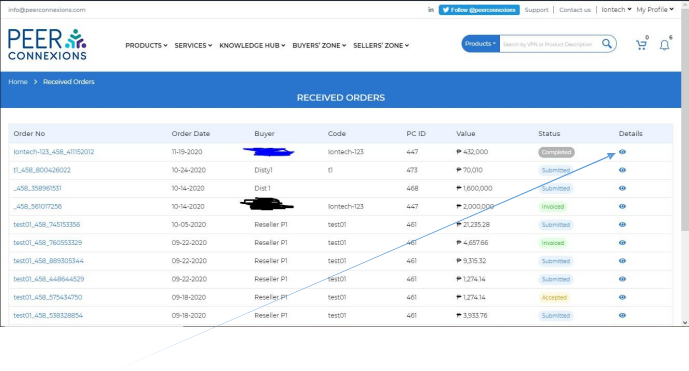
Now you can click on the details of the specific order to proceed further. It will direct you to a new page as shown below-
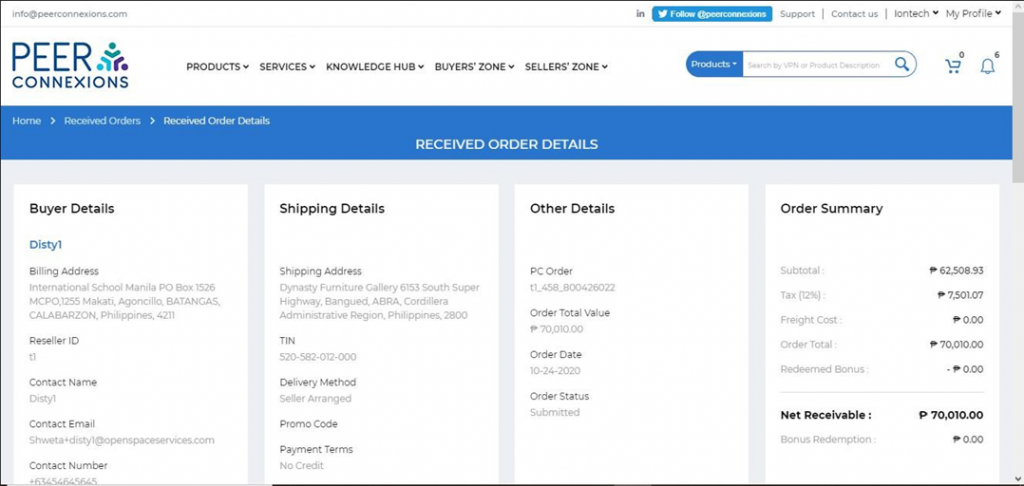
In the above screen, you can see the Bonus Redemption applied by the reseller for this order. Once the order is invoiced, the Redeemed Bonus section will get populated.
Once you scroll down, you will see the details of the order status as below-
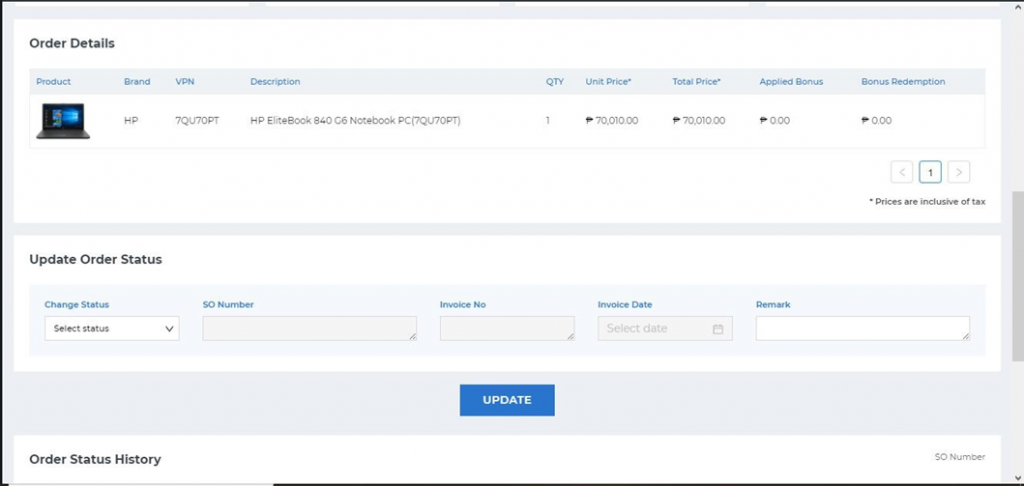
First you need to ‘Accept’ the order and to do that change the status to accepted as shown below-
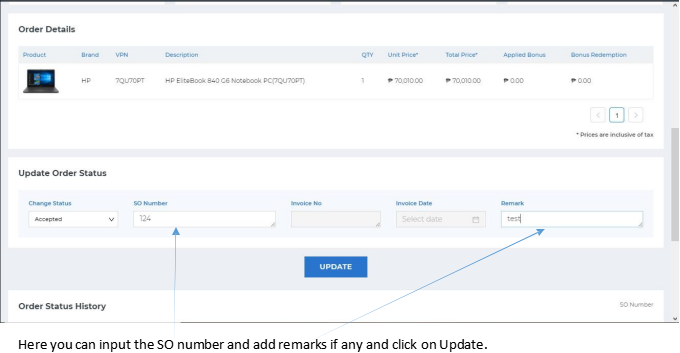
Once the order is accepted, you can change the order status to invoiced and upload the invoice pdf as shown below-
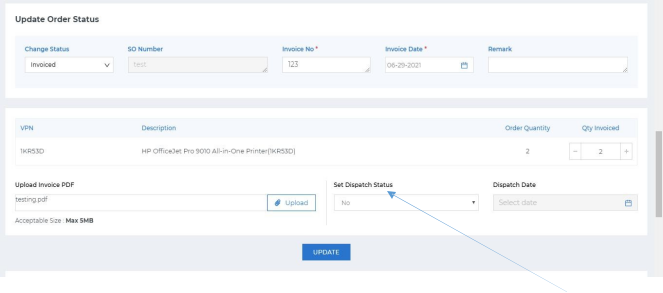
Here, after clicking on update, the order status will change to ‘Invoiced’. You need to set Dispatch Status to ‘Yes’ and select the Dispatch date to complete the order.
Note: All the fields marked with a red asterisk are mandatory to be filled in order to proceed.
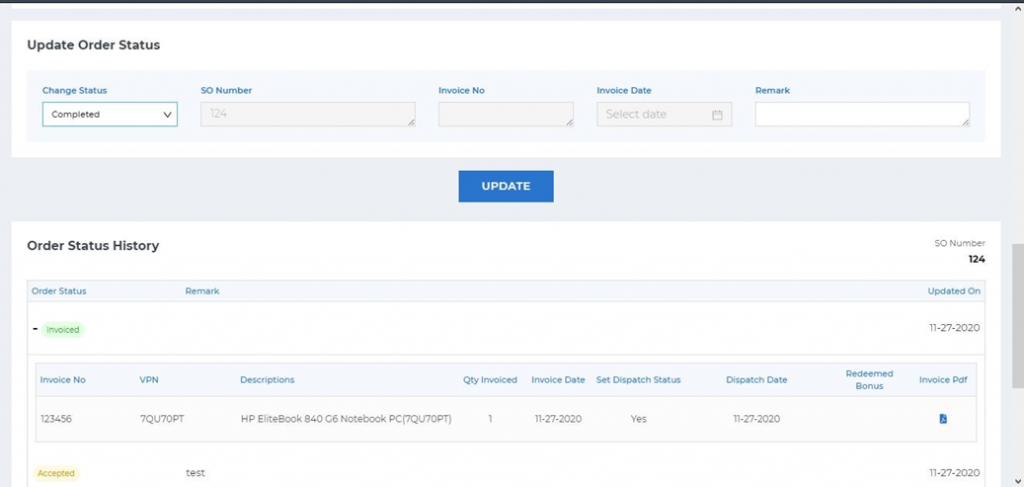
When you click on update, the order status will change to ‘Invoiced’ and now you can update the status as ‘Completed’ as the order has been processed as shown below-
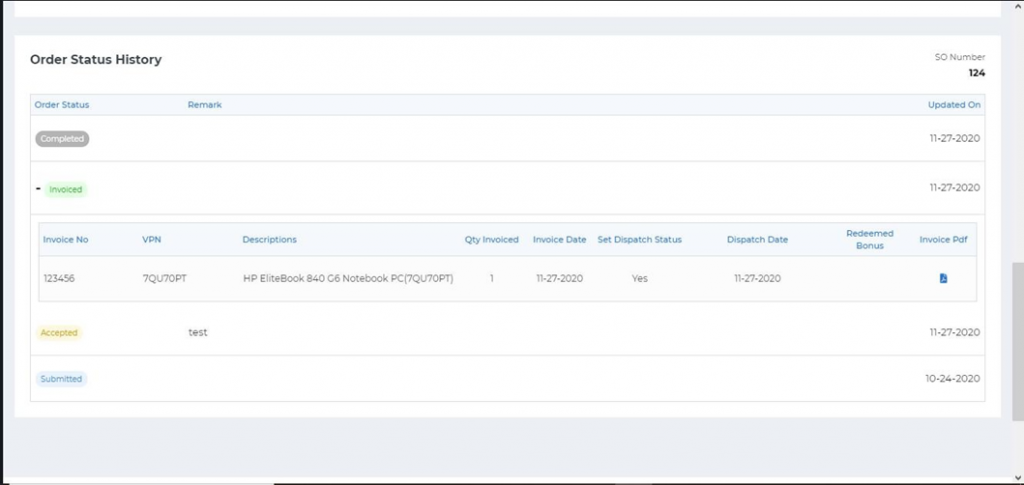
Now, you can see under Order Status History that the order has been completed as shown below-
This should help you with processing the order with ease.
Thank You