
USER MANUAL
Bargain Basement Module
Note: In order to access Bargain Basement Module, one needs to take permission from the Administrator.
You can go to Bargain Basement from the homepage or by clicking on the Bargain Basement Option under Products as shown below: –
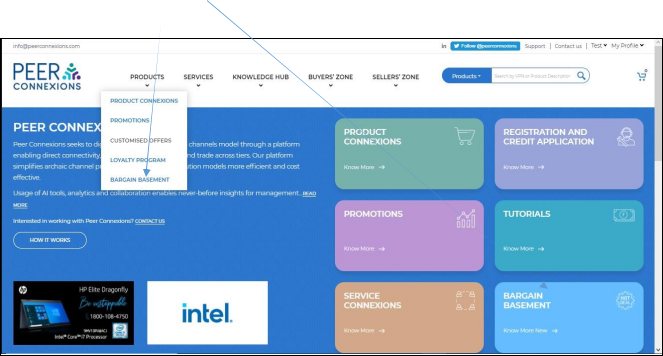
Once you click on either of these, you will be directed to a new page as shown below-
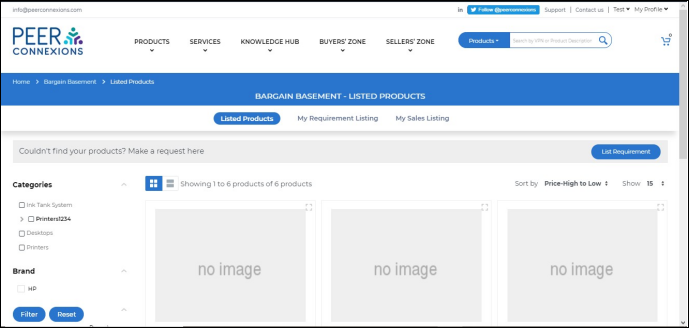
As can be seen there are three tabs available that are explained in detail below
1. Listed Products: –
This section shows all the products that are listed by multiple users of the portal at a special discounted price for specific quantities which you can choose from to buy.
As seen below, the products can be filtered based on Categories (A), Brand (B) and Ship From Address (C) as per your requirement.
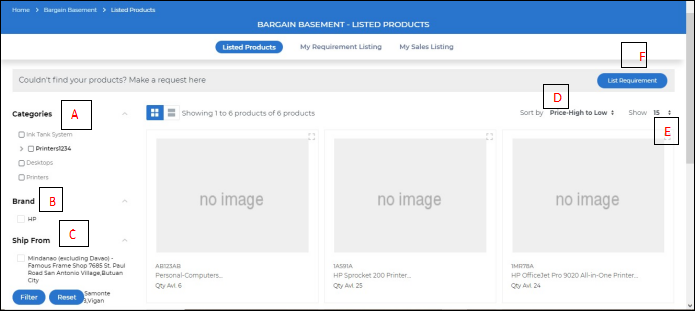
You can also sort the products as per Price High to Low (D) or Low to High and also select how many
(E) products you want to see on one page.
If you are not able to find the products that you want to buy, you can click on the List Requirement Button (F) and you will be directed to a new page as shown next.
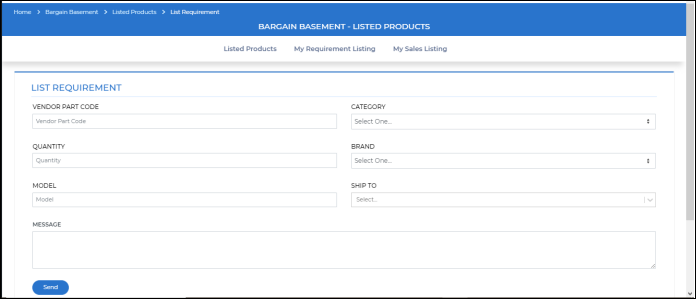
Here you would have to enter the VPN or Vendor Part Code and select the details as per requirement and send the request. All the sellers on the portal will be notified that you have listed your requirement for a particular product.
If you want to buy any product from Bargain Basement, you just have to click on the product under the listed products and you will be directed to a new page as shown below-
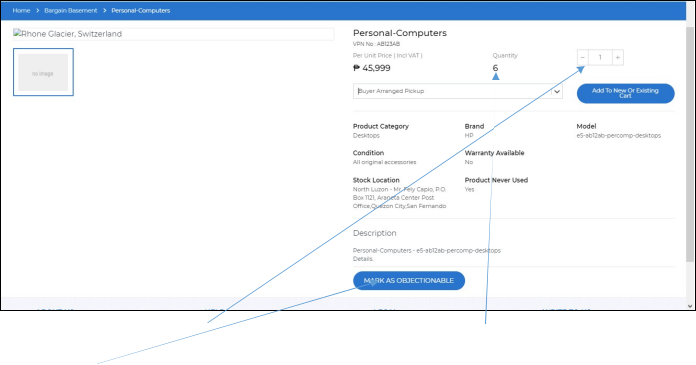
Here you can select the quantity of the product and add it to the cart. The Maximum quantity that can be purchased for the product is shown under Quantity. You can also mark the product as “Objectionable” if you have some concerns regarding this product being listed on Bargain Basement.
Once you select the quantity and the ship to address, you can add the product to an existing cart or a new cart.
Note: Products from Bargain Basement cannot be added to the cart of Product Connexions.
1. My Requirement Listing: –
This section shows all the product requirements you have uploaded on the portal. You can search for the products using different parameters that you can enter against the appropriate text boxes as shown in the following screen-shot.
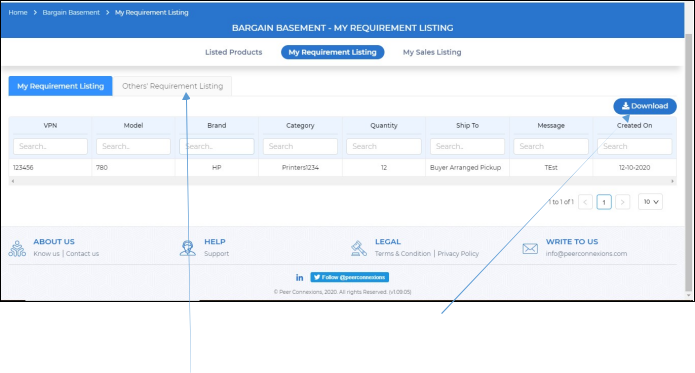
You can also download an excel file of the list by clicking on the Download Button.
Once you click on “Others’ Requirement Listing” tab, it will direct you to a new page as shown below-
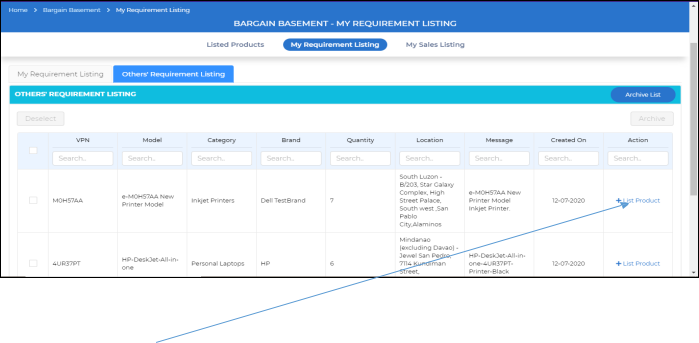
This tab shows all the products that other users on the portal have requested to buy. You can go through the list and choose “+List Product” to list that product for sale if you currently have an inventory available for it.
You can also add some products to the archive list if you do not want to see them in the “Others’
Requirement listing” by selecting the product and clicking on “Archive” as shown below-
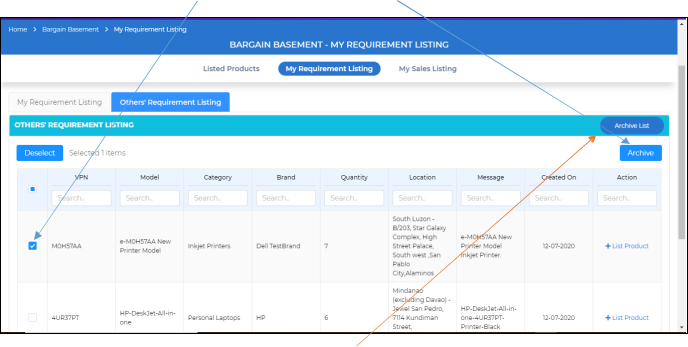
You can also see the archived products using the “Archive List” option.
3. My Sales Listing: –
In this section, you will see the list of all products that you have put up for sale in the Bargain Basement.
When you List the product (A), by default it is set to inactive, but you can set it to active once it is uploaded (B) by checking that product and clicking on Make active (C).
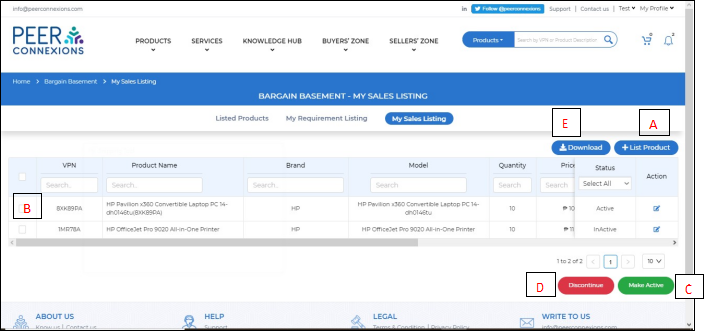
If you want to discontinue any product, you can select it and click on Discontinue (D)
You can also download the list of products in the Bargain Basement to an Excel file by clicking on the Download (E) button.
Once you click on List Product Button, you will be directed to a new page as shown below-
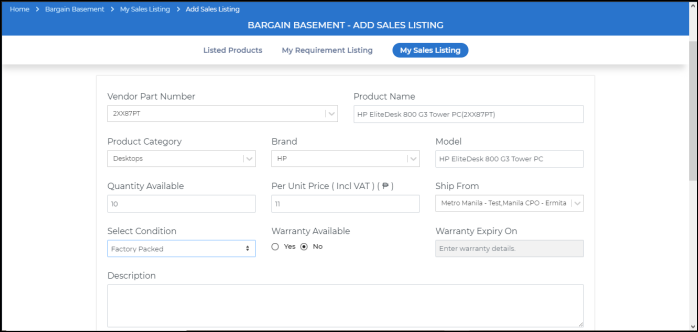
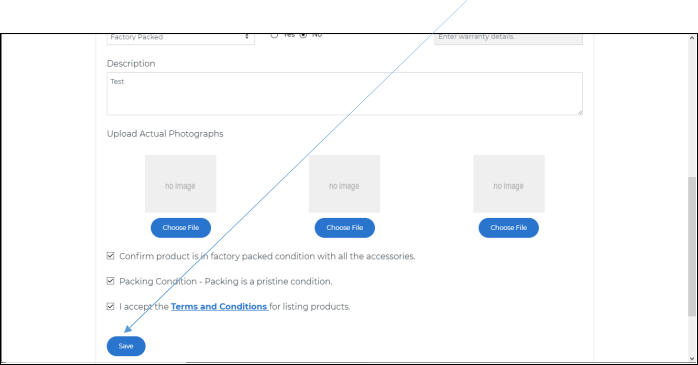
Once you fill in the required details and scroll down, you can click on “Save” to list the product in the
Bargain Basement as shown below-
End of Document