
Hello Peer Connexions Users, today we will understand how we can use the Special Price Buy Offer option in the Peer Connexions Portal.
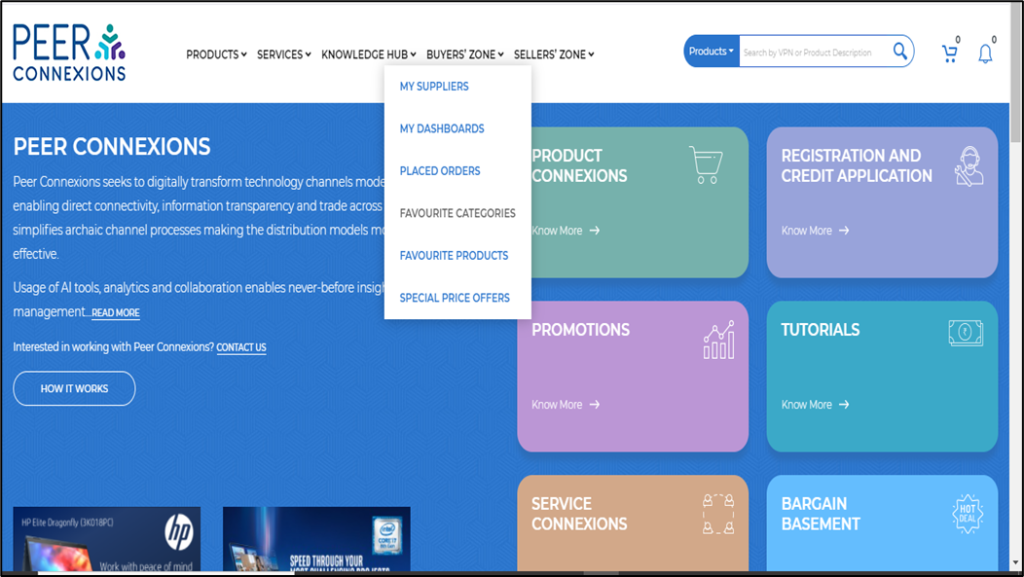
On the homepage, you can click on Buyer’s Zone>Special Price Offers as shown below-
You will now be directed to a new page as shown below-
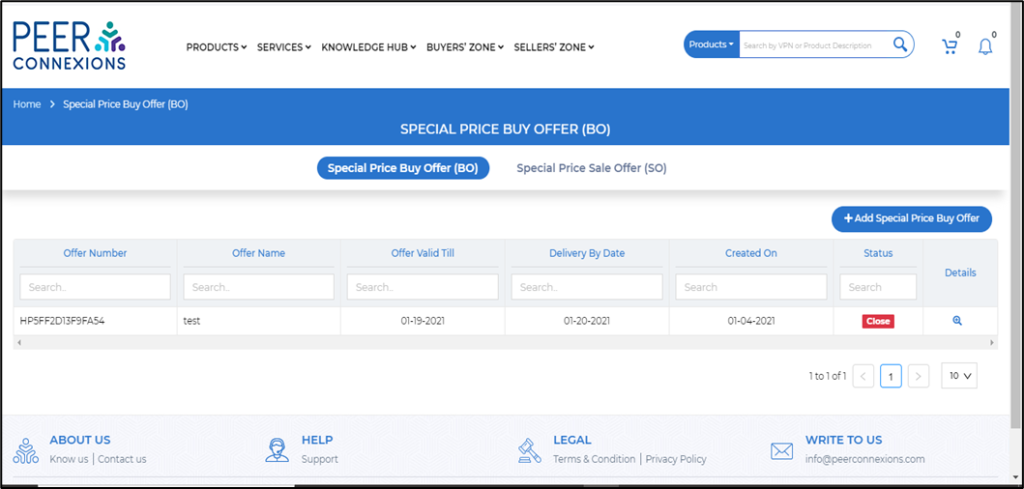
Here you can add a ‘Special Price Buy Offer’ which is an offer created by you to buy a specific vpn or a set of vpns from a specific set of buyers as per your requirement.
Once you click on ‘Add Special Price Buy Offer’, it will open a new page as shown below-
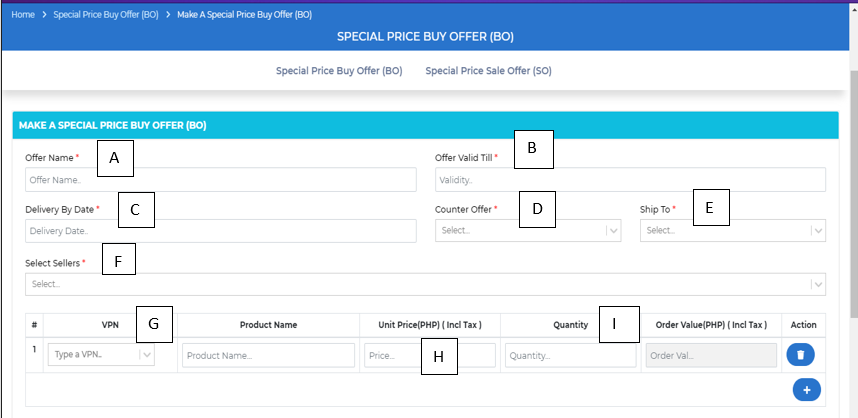
Here, you can add the offer name(A) as per your requirement, offer valid till(B) which would be the date till which the offer would be valid.
The Delivery By Date(C) will be the date till which the product needs to be delivered.
Counter Offer(D) is a special feature where the seller can create a counter offer to this offer as per his requirement and you will get the chance to accept the counter offer or create another counter offer.
Note: The Counter Offer will have maximum three rounds wherein in the last round, the seller will have to either accept the offer or reject it. (We will see this in detail in the tutorial ahead)
The Ship To(E) location will be the location to which you want the product to be shipped.
Under Select Sellers(F), you can add the required sellers for whom you want to create this offer.
Now you can add the required VPNs(G) with their Unit Price(H) and Quantity(I) as required.
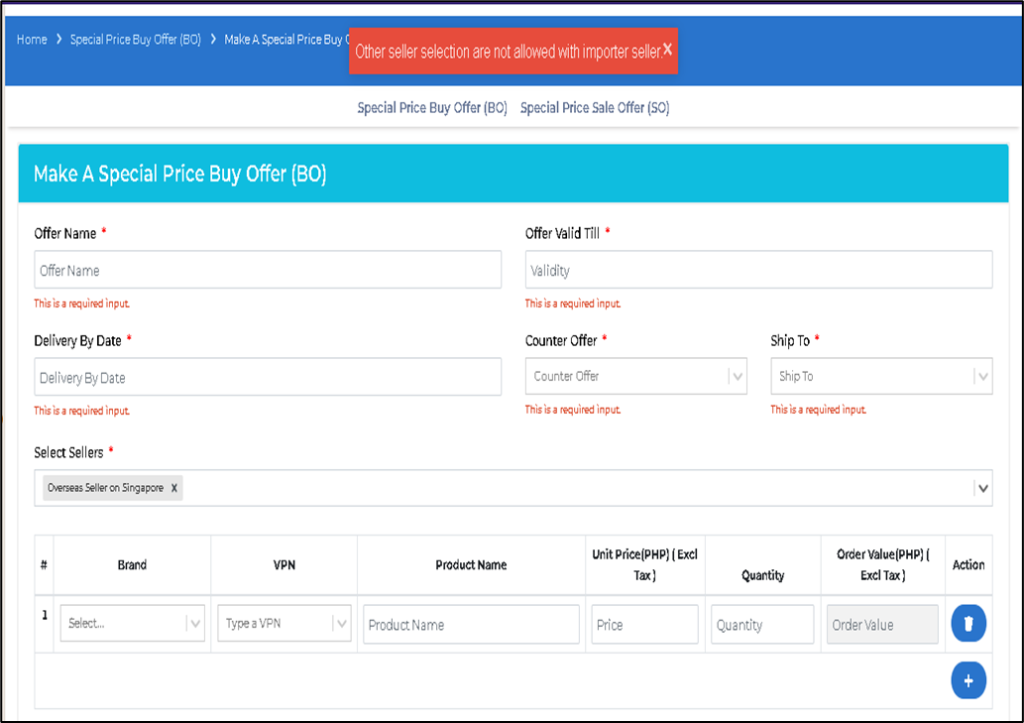
Note-If you select an Overseas/Importer Seller in the Select Sellers section, you will not be able to select any other seller as shown below—-
Once you fill all the details, you will be able to see them as below-
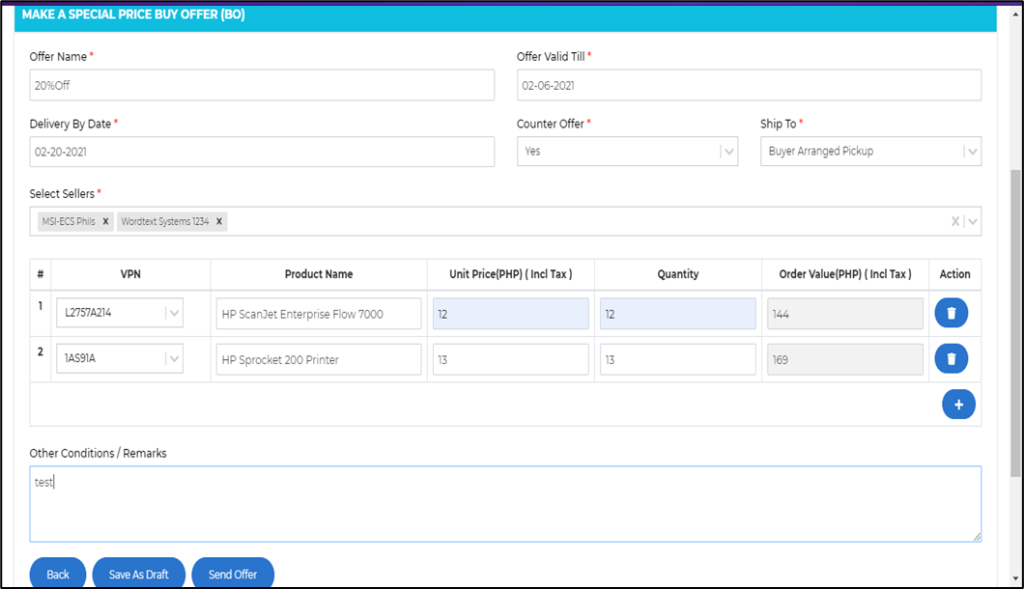
You can now either save this offer as draft by clicking on Save as Draft button or Send the offer to the selected sellers by clicking on the Send Offer Button.
Once you click on Send Offer, you will get a pop up as below-
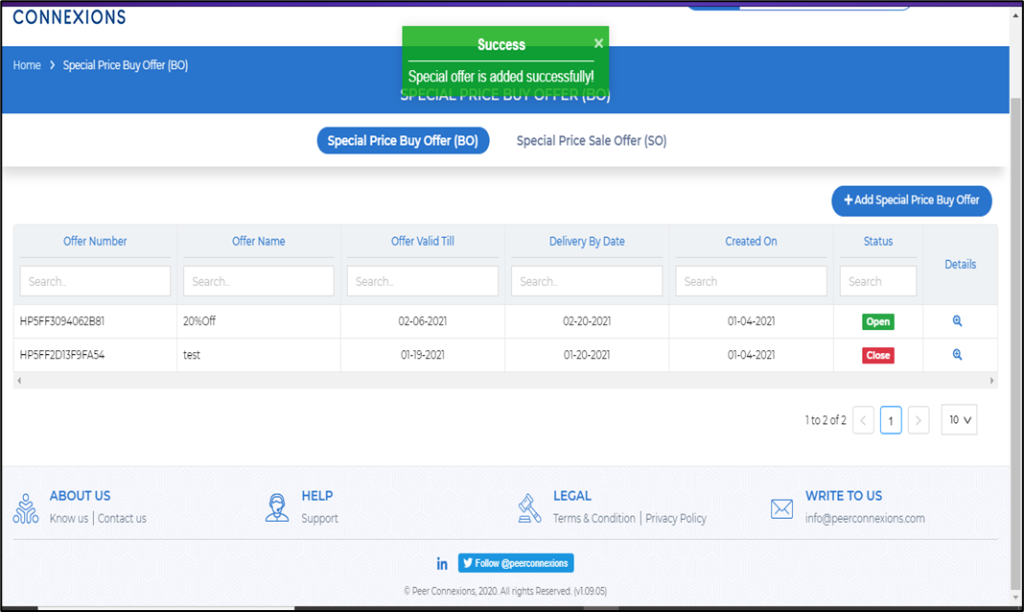
Now, all the added sellers will be notified about this offer created via email and then they would have the option to respond to you offer by accepting it, declining it or making a counter offer(If counter offer is selected as Yes while creating the offer).
You can check the offer status by clicking on the magnifying glass symbol(A) under details as shown below-
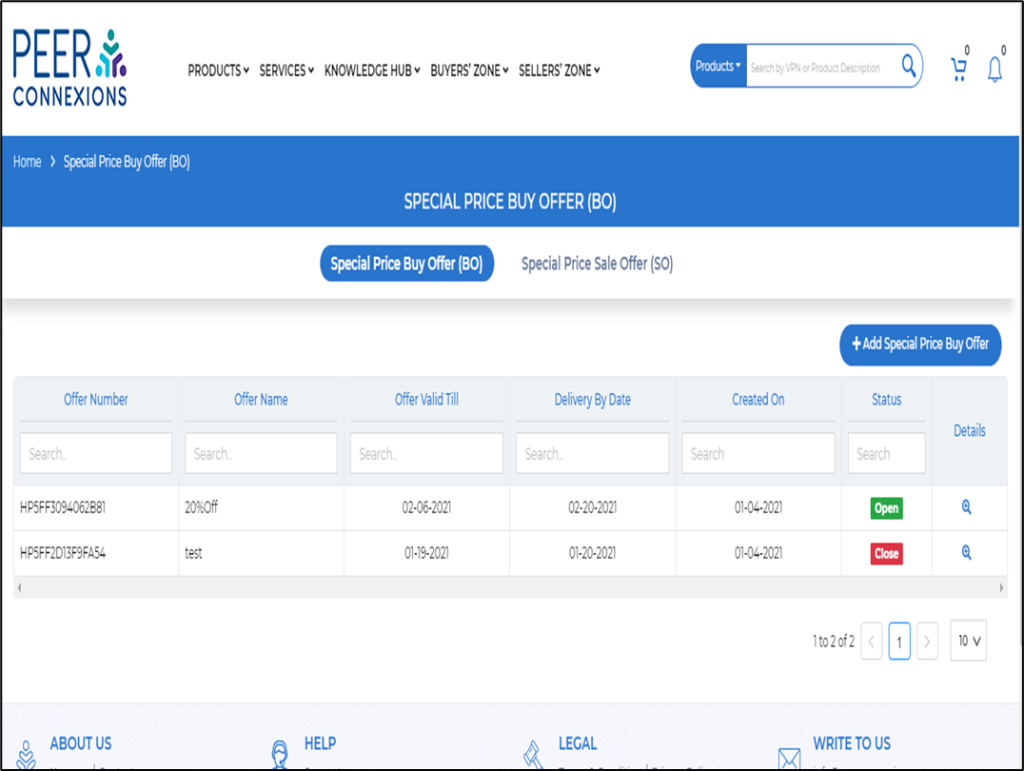
It will direct you to a new page as shown below-
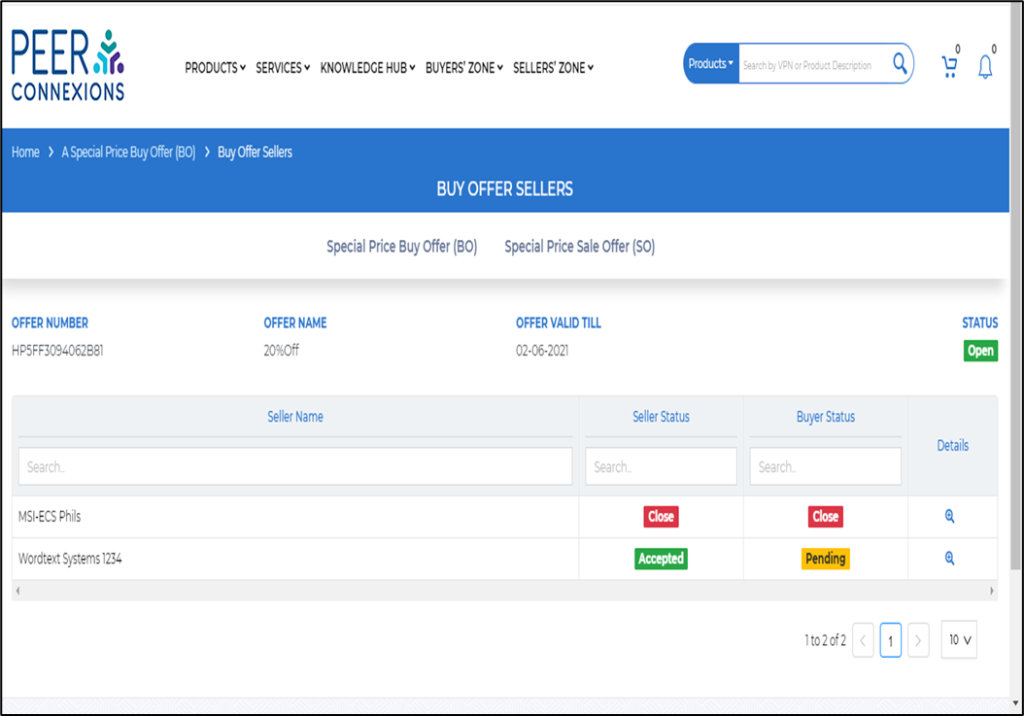
Here you can see the Seller Status(A) and click on the Magnifying glass symbol(B) under details to view the offer details.
As you can see, the seller has accepted our Buyer Offer, now we click on details to see the details of the offer as below-
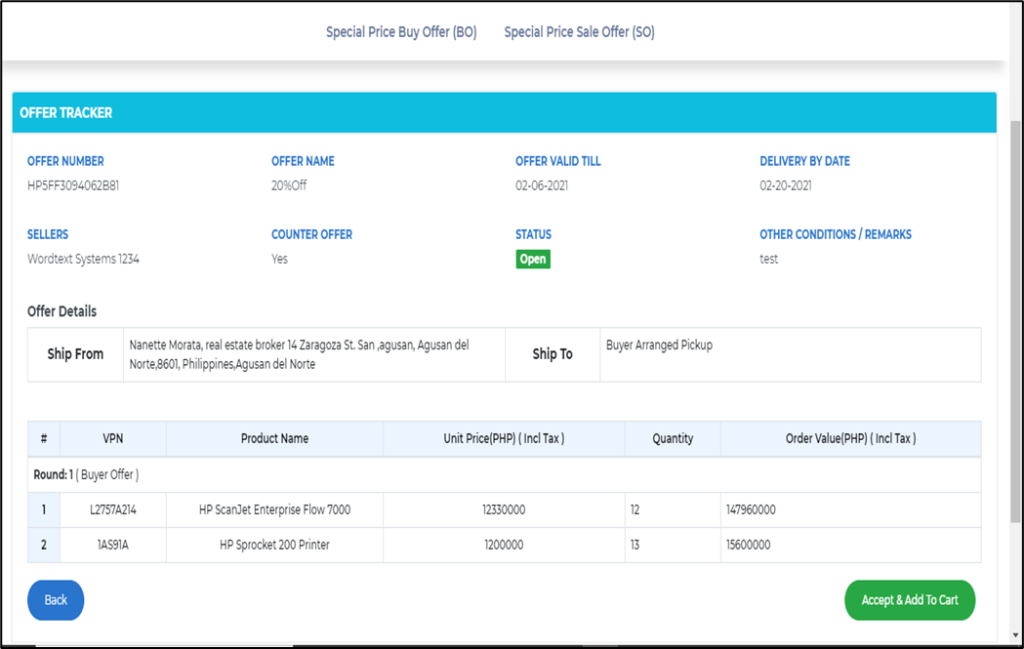
Here you can click on Accept and Add to Cart and Order the required product.
If the seller has given a counter offer, you will be able to see it under Special Price Buy Offer as below-
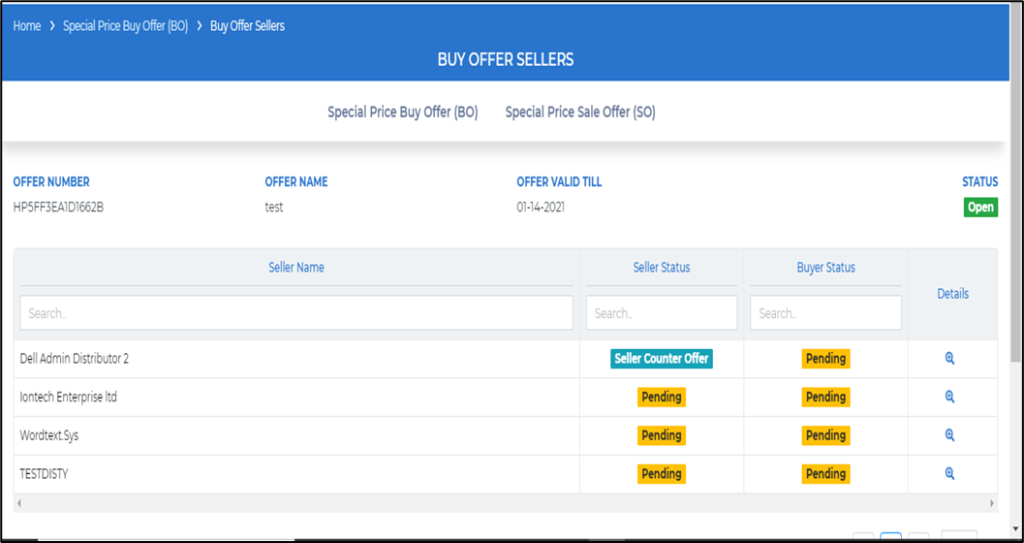
Now you can view details to see the counter offer provided by the Seller as shown below-
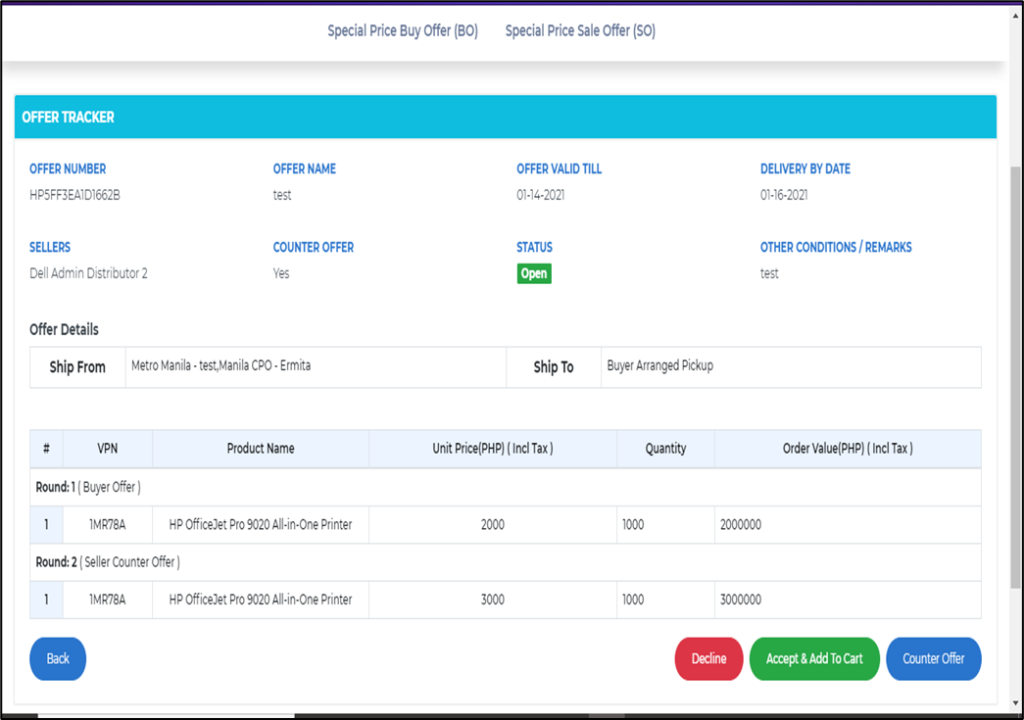
You can either Accept And Add To Cart or Decline or create another Counter Offer as required.
If you create a counter offer, the Seller will only have the options to Accept or Decline as this is the third and last round of Negotiation.
If the Seller accepts the Counter Offer, you can Accept And Add to Cart and place the order as shown below-
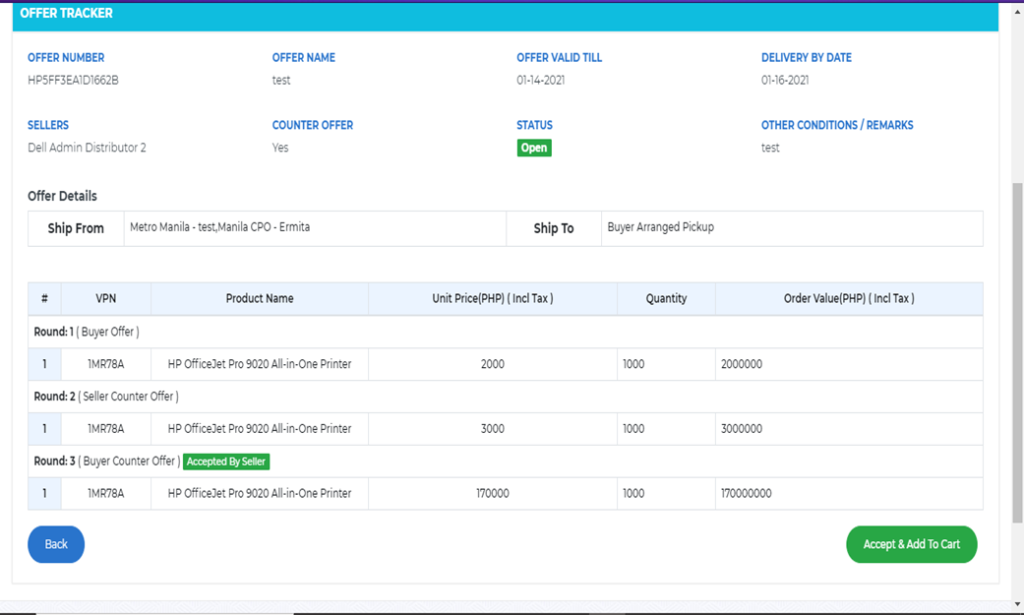
Note–If you select an Overseas/Importer seller while creating the Buy Offer then after you click on Accept and Add to Cart, the Order Flow followed will be of the Import Order.
This will help you with using the Special Price Buyer Offer with ease.
————————————————Thank You————————————————–