
User Manual – How to manage notifications
Manage Notifications
You can manage the notifications on the Peer Connexions portal using the notifications module. To access it, go to the website and click on the ‘Sign In/Register’ option located in the upper right corner of the page.
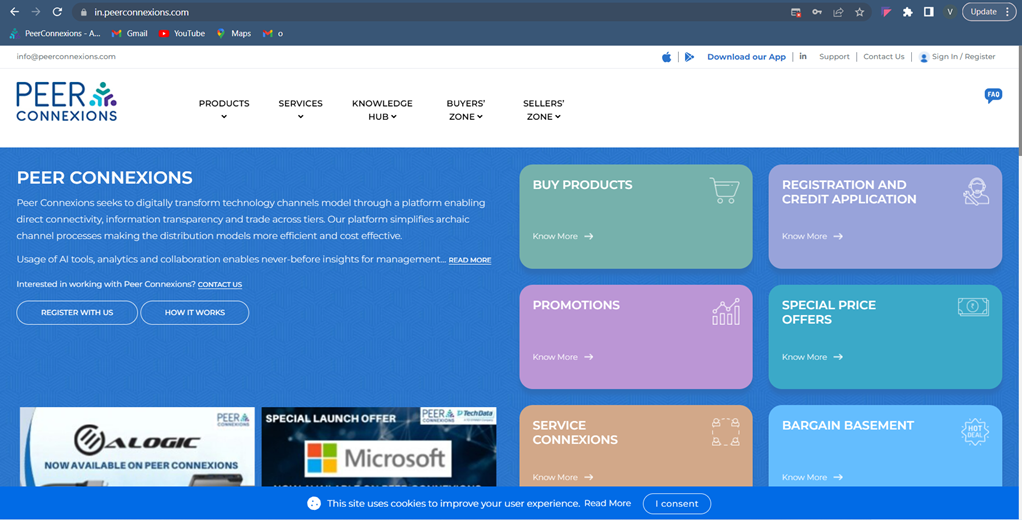
You will be re-directed to the following page
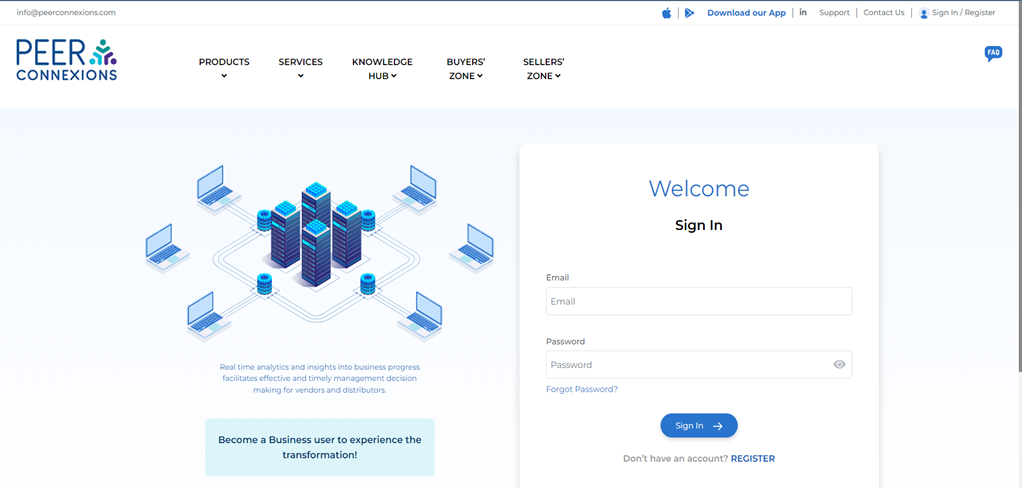
Login using your credentials to get directed to the home page of Peer Connexions
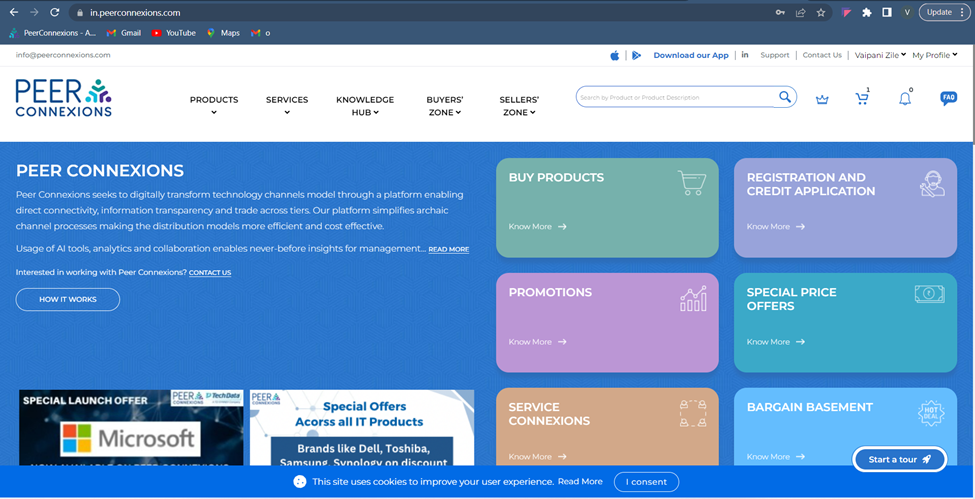
Click on the drop-down menu of ‘My Profile’ at the upper right corner and select ‘Manage Notifications’
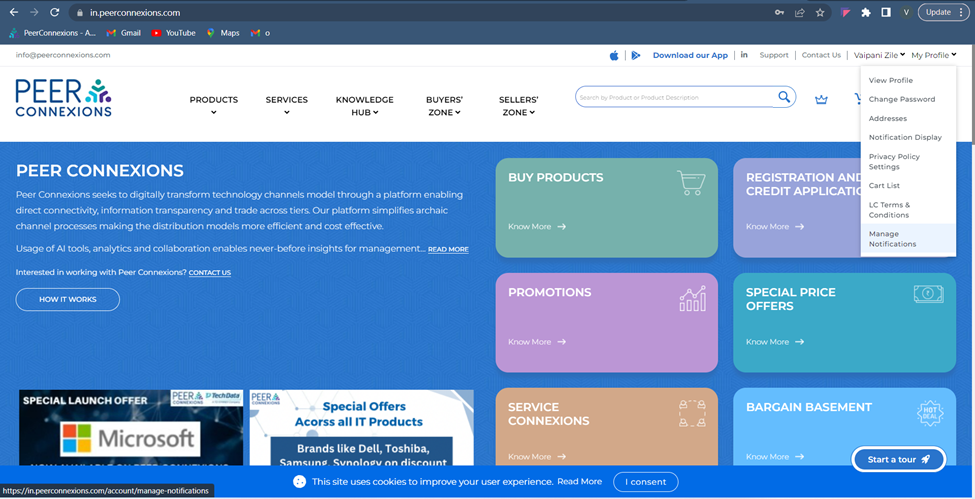
You will be re-directed to the following page.
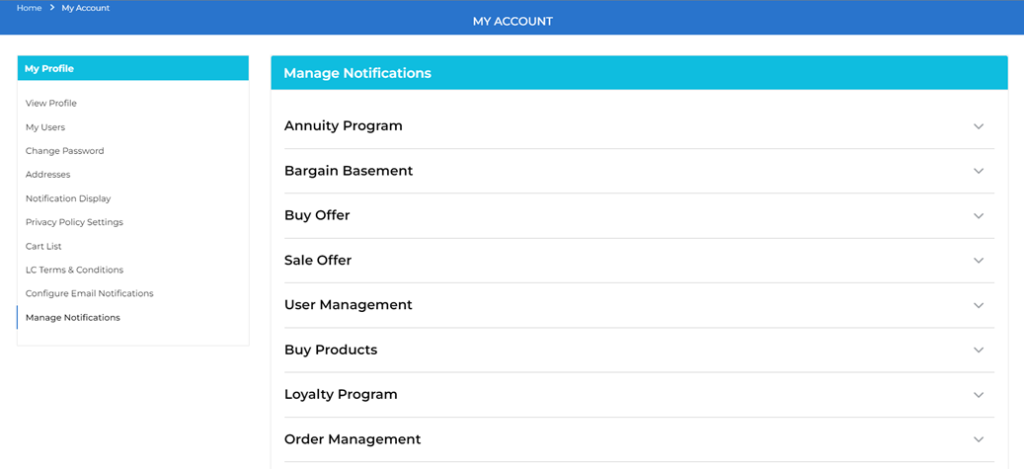
Click on the module you want to manage notifications for.
For e.g., Order Management
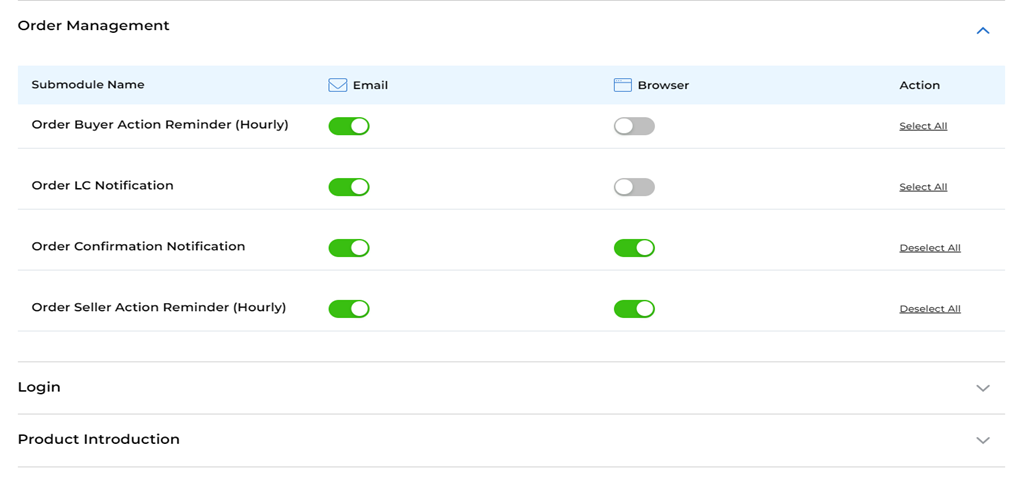
In order to receive the notifications, toggle the switch to the right; which will turn it ‘Green’ in color signifying that the notifications can be received.
In order to stop receiving the notifications, toggle the switch towards left. This will disable the notifications turning the switch to ‘Grey’ in color.
After making the necessary changes, click on ‘Save changes’ at the bottom to save the settings made in the notification’s module.
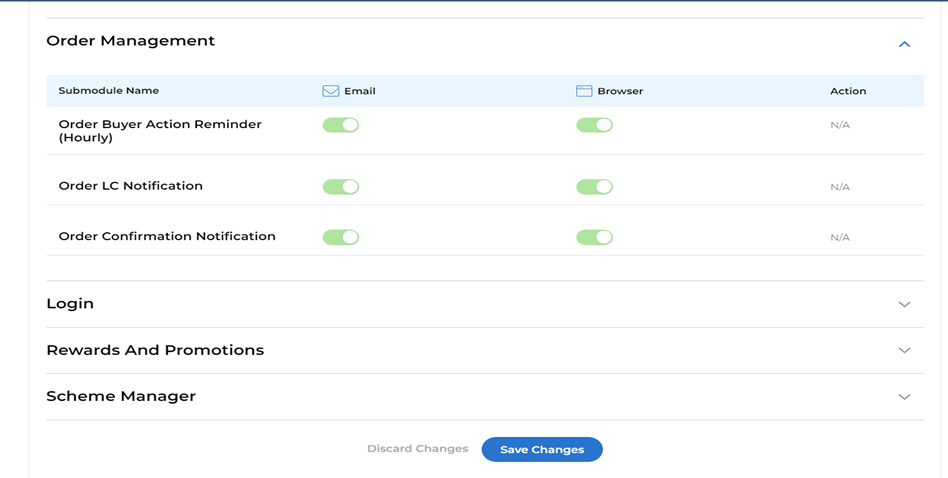
This will in turn save the changes you have made and now you will receive only selective notifications.
If instead of toggle ‘N/A’ is shown, as mentioned in the below screenshot
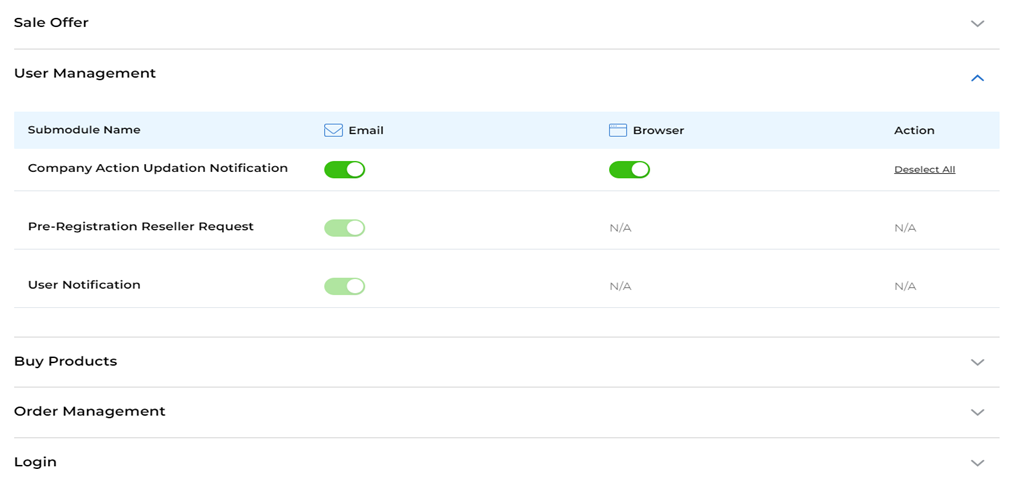
It means you won’t receive the notifications by default and hence you don’t have access to set the notification for this module.
Thank you!