
Hello All, we are introducing a module through which you can add multiple rewards at individual item level/ invoice level for the transactions done on the portal by the resellers.
In order to access this section, you can go to Sellers’ Zone>Manage Promotions & Rewards as shown below—
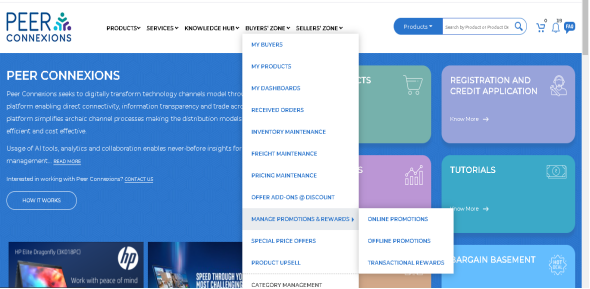
There are three categories in this section, we will go through each of them one by one–
- Online Promotions
Once you click on Online Promotions, you will be directed to the below page
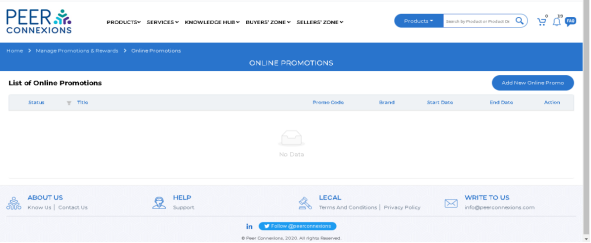
You can click on Add New Online promo to add a promotion, which will direct you to the below page—-
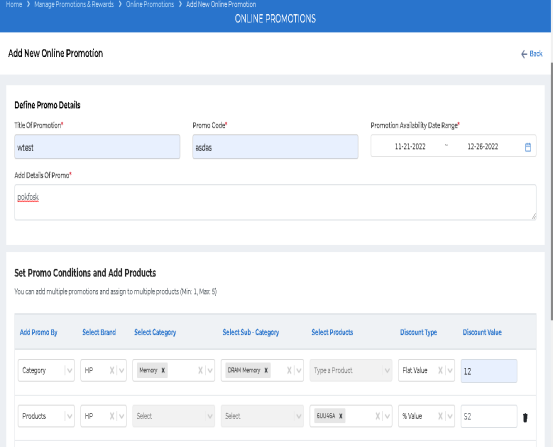
Upon Scrolling down you will see the below screen—-
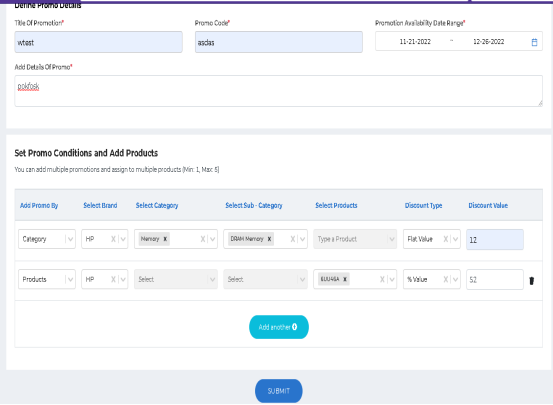
Here you have to select the basis on which you want to provide the discount.
You can add a ‘Flat Value Discount’ or you can provide ‘% Value Discount’ on the products or categories required.
As shown above, you can add multiple categories and products in a single promotion with different discounts for each and submit the promotion.
Once you submit the promotion, it will be available as shown below–
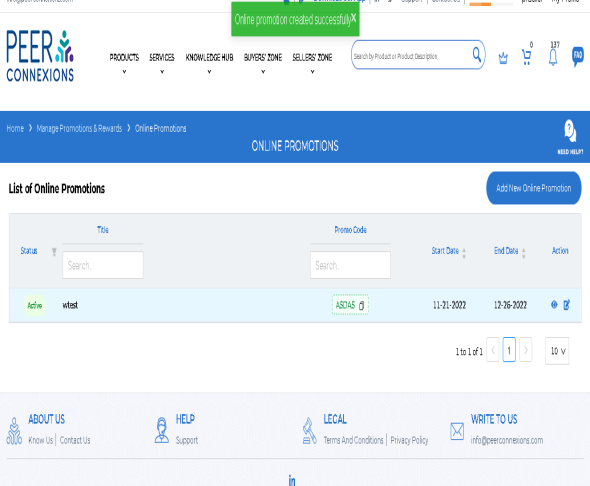
2. Offline Promotions- For these promotions you can refer to the Promotions tutorial available on the portal.
3. Transactional Rewards- You can access this section by going to Sellers’ Zone>Manage Promotions & Rewards>Transactional Rewards, this will direct you to the below page–
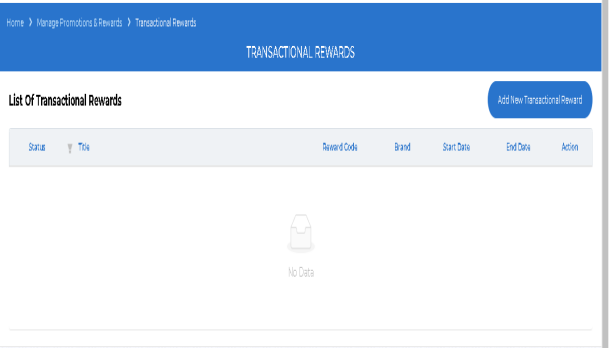
Here you can click on Add New Transactional Reward, which will direct you to the below screen–
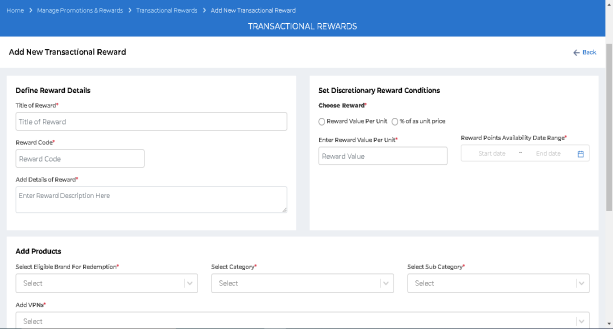
You can add a ‘Reward Value Per Unit’ or you can provide ‘% Reward on Unit Price’.
In both cases, you have to fill the required fields, select the products/product categories on which the Rewards will be applicable and select the ‘Reward Expiry Date’ and submit the Reward.
The reward will be visible as shown below—
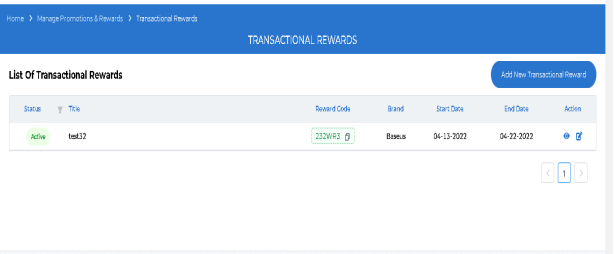
Note-Category Manager can access Online Promotions, Transactional Rewards and Discretionary Rewards by going to Sellers’ Zone>Category Management>Rewards & Promotions Tab.
4. Discretionary Rewards—-
This feature is only available to Category Manager currently, which can be accessed by going to Sellers’ Zone>Category Management>Rewards & Promotions Tab.
From this section, you can directly add Reward Points to the required reseller’s Reward Points Balance.
You can see the Discretionary Rewards tab as shown below—-
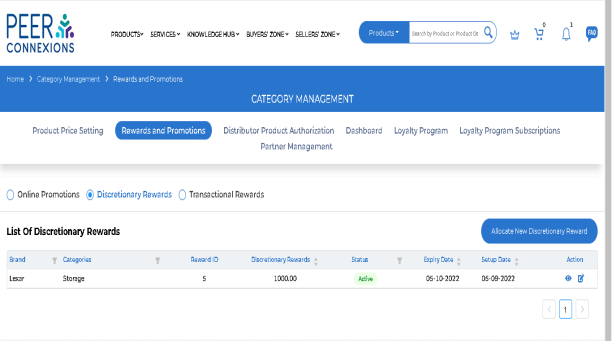
You can click on Allocate New Discretionary Reward to provide the required amount on loyalty points directly to the required reseller.
Once you click on it, you will see the below screen—-
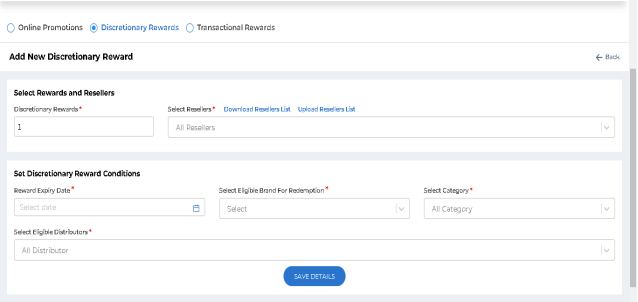
Here you can select the amount of Discretionary rewards, select the resellers, select the reward Expiry date, select brands eligible for redemption of these reward points and also you can select the categories and distributors on which these rewards can be redeemed.
Once you click on Save Details, you will see it in the list as shown below—-
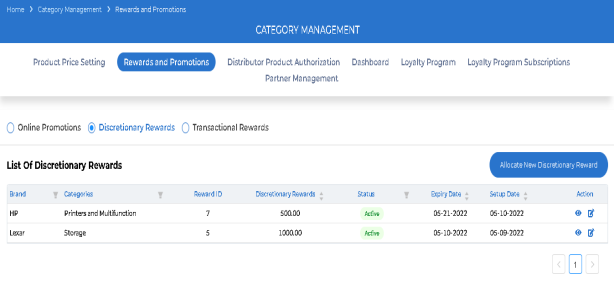
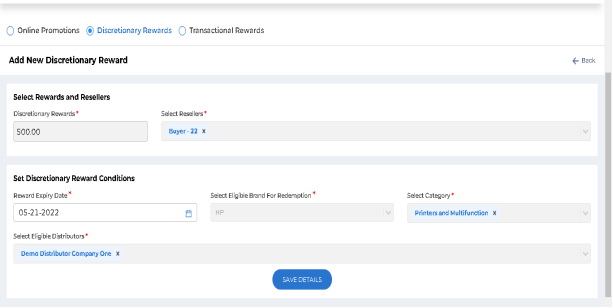
Note- After adding a discretionary reward, you can edit only the expiry date of the reward by clicking on the edit button in the Action column as shown below—
Dashboard Related Changes—-
In order to provide ease of use and efficient access of transactions related to rewards and promos, we have made changes to the order dashboard and sales dashboard as shown below—-
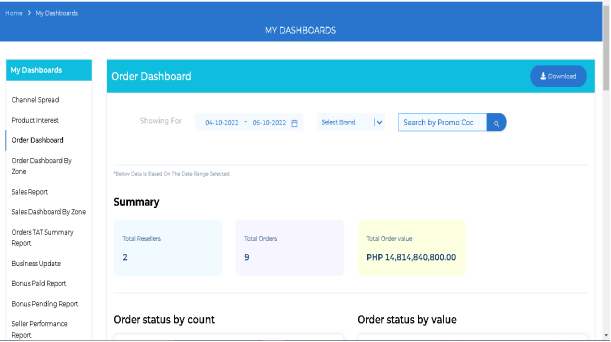
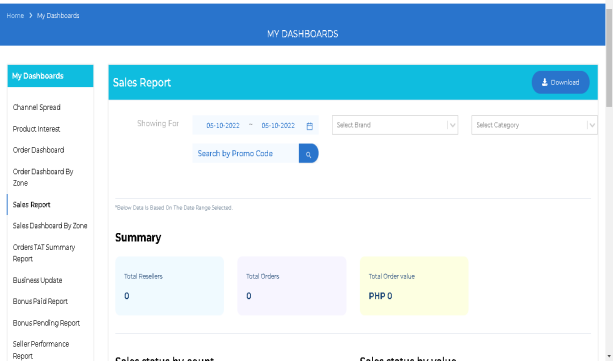
As you can see in the above dashboards we have provided an option to search an order by promo code directly.
We have also added the following reports for Distributor on the portal—
1.Reward Points Paid Report—
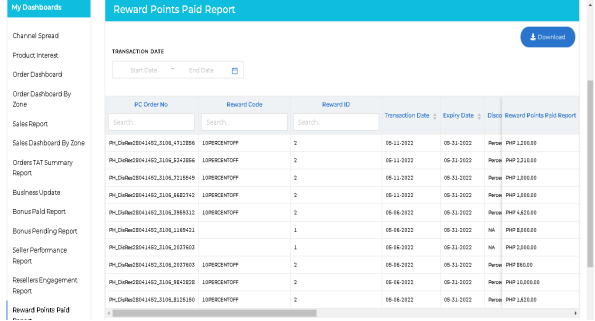
Here you can see all the transactional rewards provided to the reseller at the order level.
2. Reward Points Pending Report—-
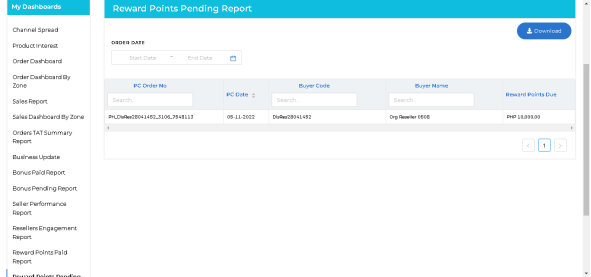
Here you will see all orders where the reward points are pending to be paid as the order is not invoiced yet.
Once the order is invoiced, the entry will be cleared from here and will move to Reward Points Paid Report.
We have added following reports for the Category Manager on the portal—
Reward Points Paid Report—
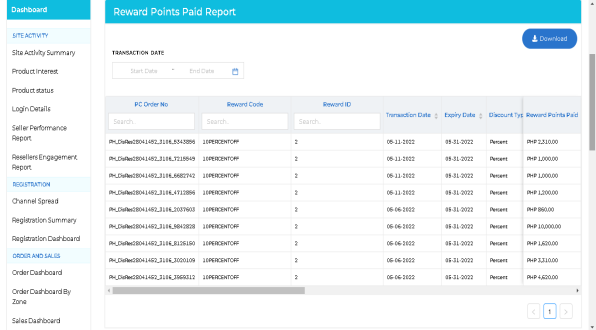
Here you will see all the transactions where Reward points were paid to the reseller, do note that these transactions will include discretionary rewards as well but the PC Order No will not be present as these will be directly provided by the Category Manager to the reseller.
This will help you in using the rewards module.
—————————————————-Thank You:-)————————————————————