
We have introduced two new roles in the portal namely Sales Manager and Sales Person. This tutorial will help you with understanding these roles and creating users with the respective access.
Note-Currently these users can only be added by a Distributor or a Seller on the portal.
- Sales person———
This user will be a sub ordinate of the Sales Manager.
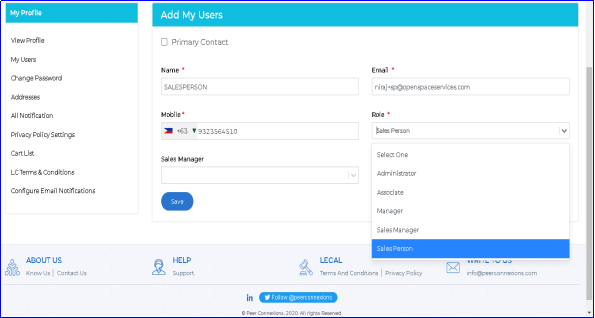
The user can be added by selecting the role for it as shown below—-
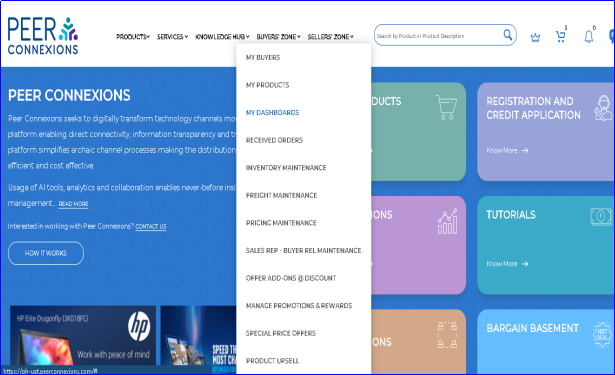
Once this user is activated, he will have access only to dashboards as shown below–
Under dashboards, they will be able to access three dashboards—
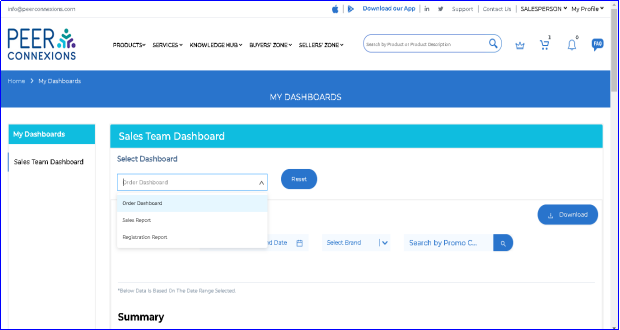
Currently this user will not see any data as it is not mapped to any reseller.
Now to map a Salesperson with the Resellers, a Sales Manager needs to be created as below—
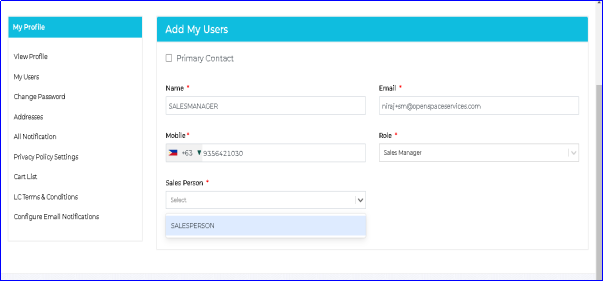
While creating a Sales Manager, you need to map it with at least one Sales Person.
The Sales Manager will have the following access—-
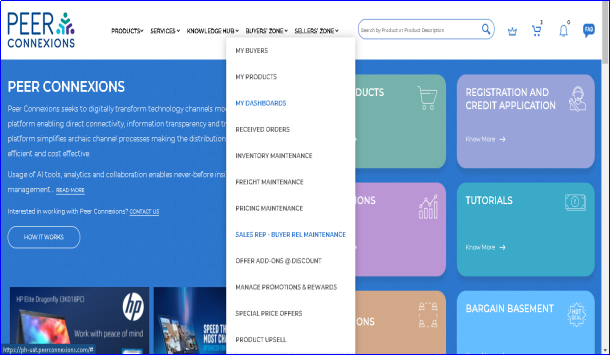
To link the Sales Person with the Resellers, the Sales Manager can go to Sales Rep-Buyer Res Maintenance.
It will redirect to the below screen—
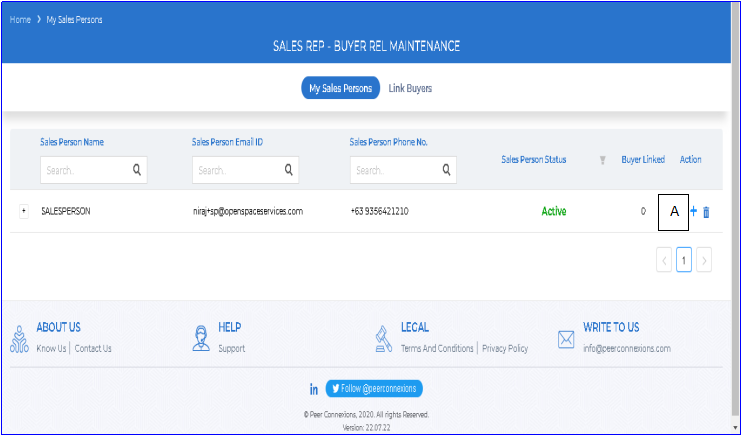
This will show the list of all Sales Persons linked with the logged in Sales Manager.
Now, the Sales Manager can click on Plus Sign(A) in the Action column to link the buyers with the Sales Person, which will take them to the below screen—
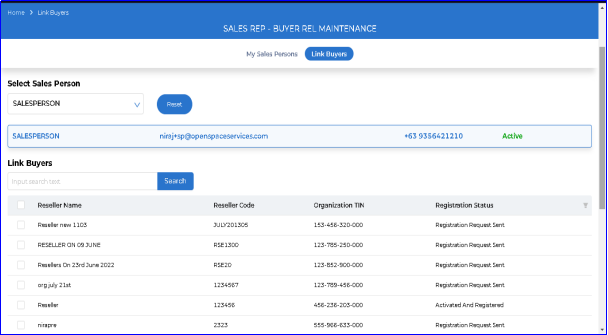
Here you can select the resellers you want to link with the Sales Person and click on Link Buyers(B) by scrolling down as shown below—
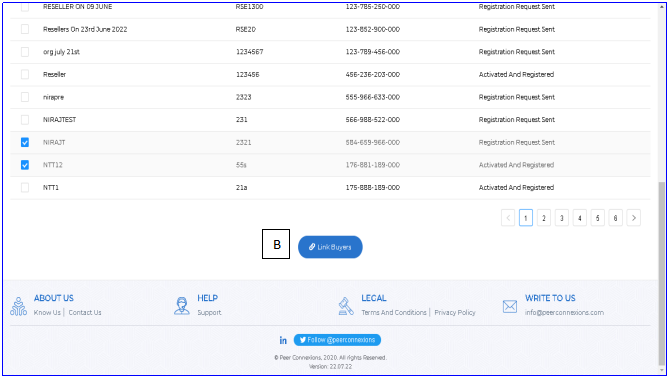
You will get this message after linking the buyers—
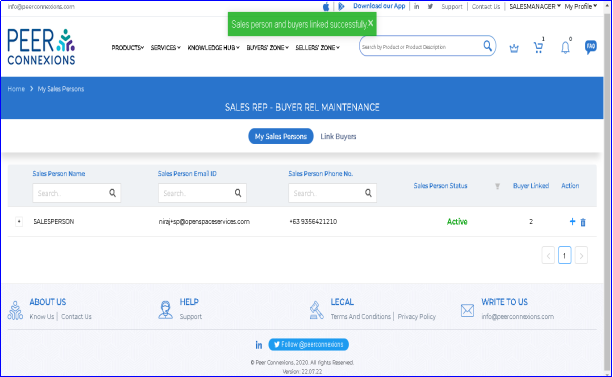
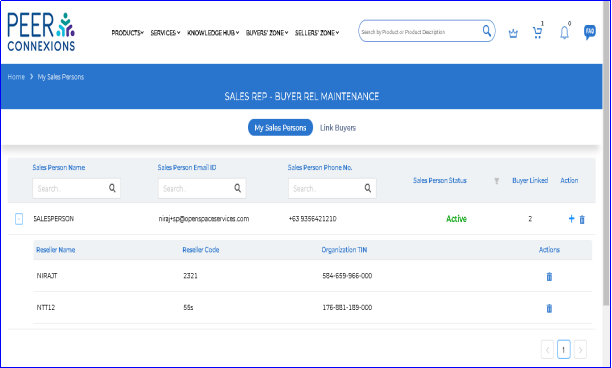
The resellers linked with the Sales Person can be seen by clicking the plus sign on the left side—
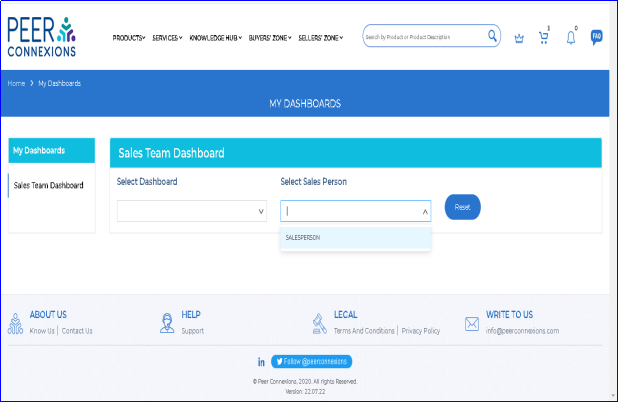
Under My Dashboards, the Sales Manager will have access to see data for dashboards for each Sales Person as shown below-
This concludes the Tutorial for Sales Manager and Sales Person roles and will help you with using the same in the portal.
———————————Thank You:-)———————————–