
You can register on PC (Peer Connexions) portal either as a Distributor / Seller or as a Buyer / Reseller. The below steps are for registration on the portal as a Reseller / Buyer.
Registration on the Peer Connexions Portal is via two methods:
- Self-Registration: Register via the Self-Registration guided process on the portal
2. Pre-Registration: Registration via a Pre-Registration Invite email sent by Peer Connexions.
An explanation of steps to be followed to register on the portal as well as registration with Distributors / Sellers is detailed in this tutorial.
The steps explained in this document are as below:
- Step 1: Initiate the Self-Registration guided process.
- Step 2: Provide information required for Self-Registration and activate your account.
- Step 3: Register with a Distributor / Seller: Update registration details with those Distributors with whom you are already registered.
- Step 4: Register with a Distributor / Seller : Register with new Distributors
- Step 5: Apply for Credit Limit Approval with registered Distributors
First part of the tutorial explains registration for Pre-registered Buyer / Reseller and the second part explains steps for Self-Registration.
Step 3 onwards is common for Buyer / Reseller who have registered via Pre-registered and Self- registered mode.
Steps to be followed by Pre-Registered users
As a pre-registered user you will receive an invitation email as shown below.

Choose ‘Click Here’ to take you to your profile page (as shown below) This will open the Welcome Page as shown below:
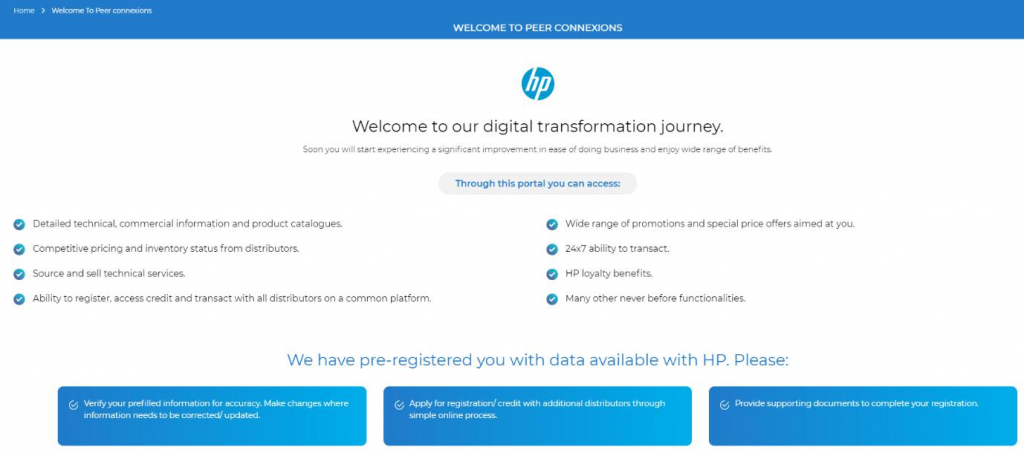
You can scroll down the page to check your pre-populated profile details(refer below screen shots)
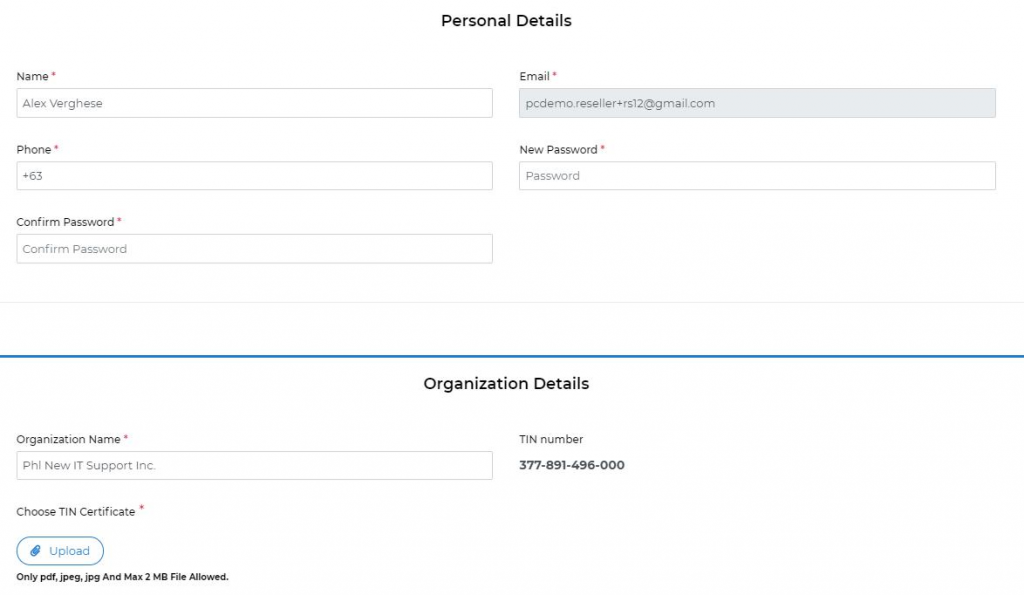
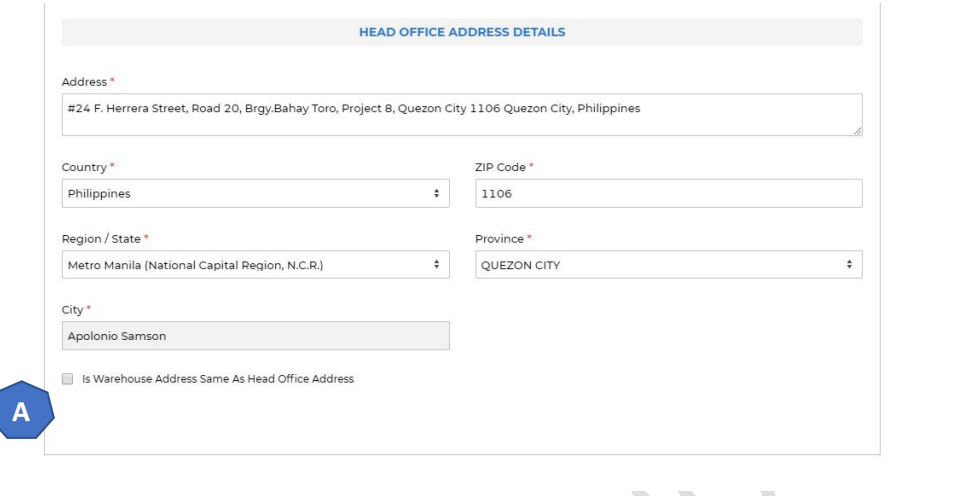
A: If your warehouse address is same as the head office address, you can check the checkbox(A) and enter the warehouse title.
In the below screen, you can enter the industry that describes your organization.
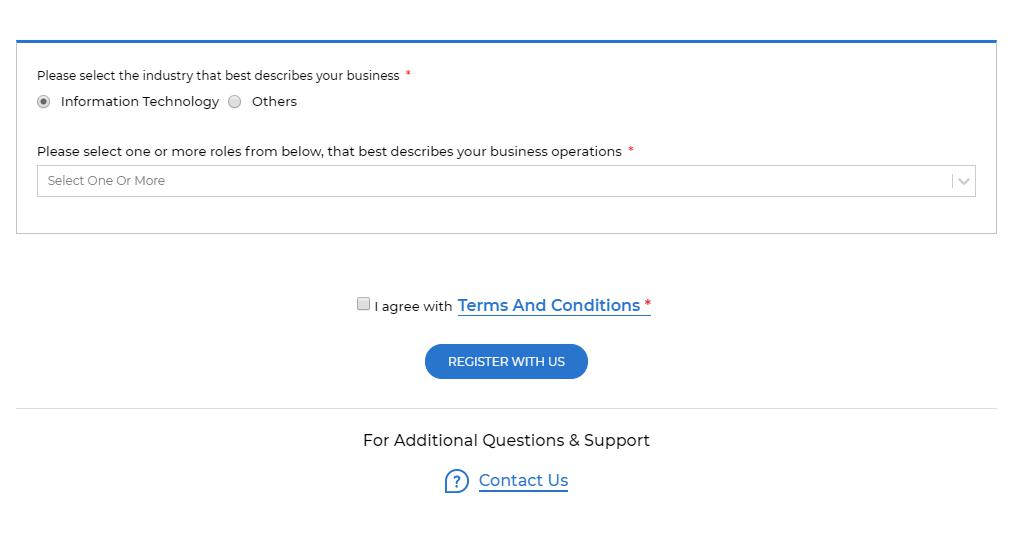
Once you verify your details and set your password, review the ‘Terms & Condition’s’ of usage and Tick the ‘Terms and Conditions’ box if acceptable. Then click on ‘Register with us’ button. You will now be setup as a registered buyer on the portal. You can now proceed from Step 3 onward to complete your registration process.
Steps to be followed for Self-Registration:
Step 1 – On the home page (shown below) click ‘Register with us’ or ‘Register’
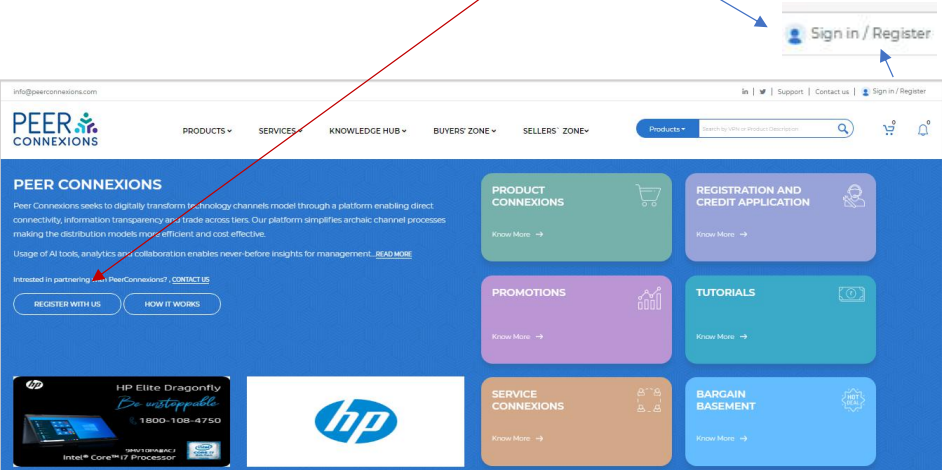
Step 2 – Registration-
On Clicking on the above link, you will be redirected to the page shown below-
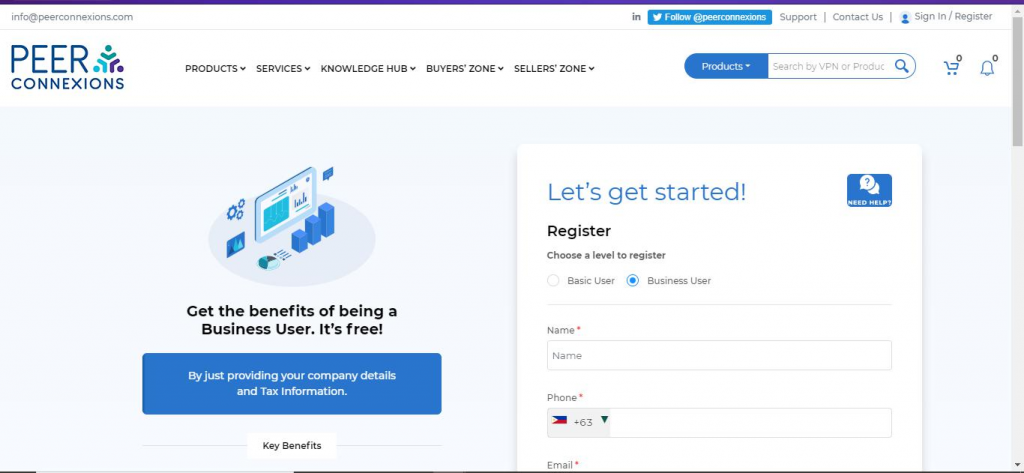
As you can see above, the Business User option is already selected, this means that you will be registered as a Business User on the portal directly once approved.
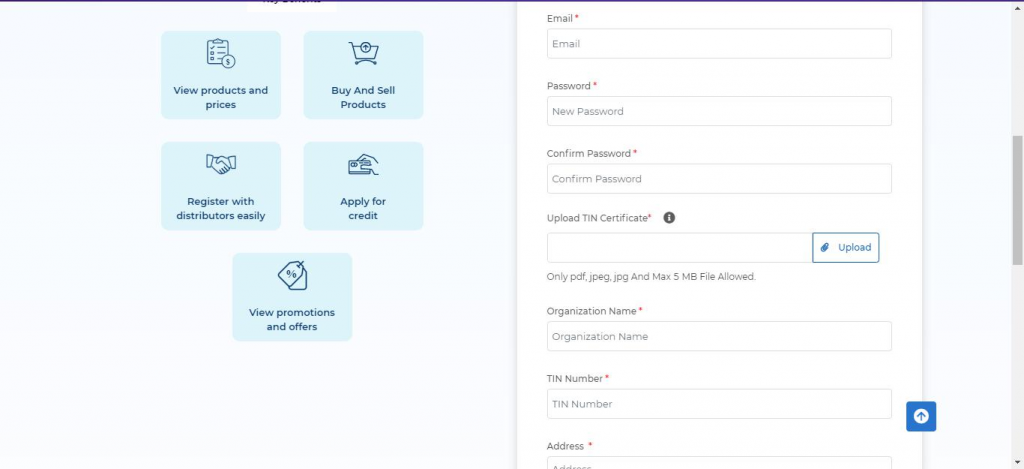
You need to fill all the required details which are shown in the above screenshot marked with a red asterisk (*)
If your warehouse address is same as the Head Office Address, you can check the checkbox (A) shown below-
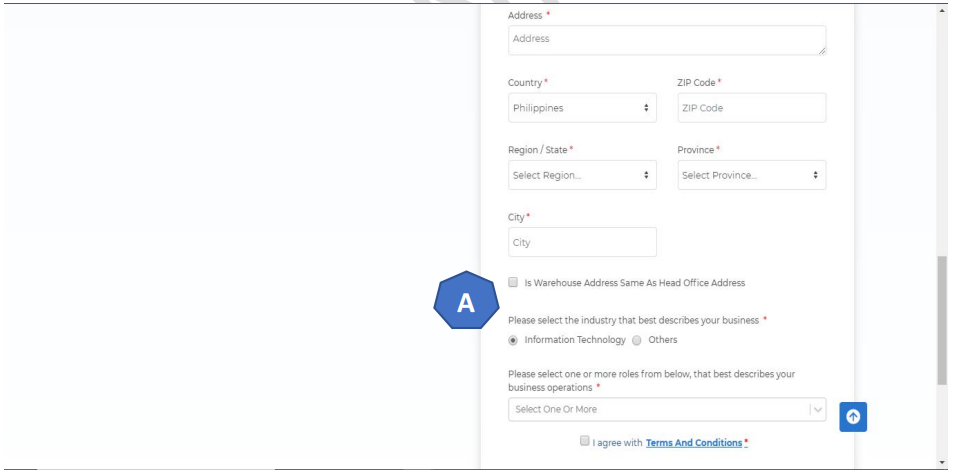
After filling all the required details, you can click on ‘Register with us’ button, after which you will be redirected to the below screen-
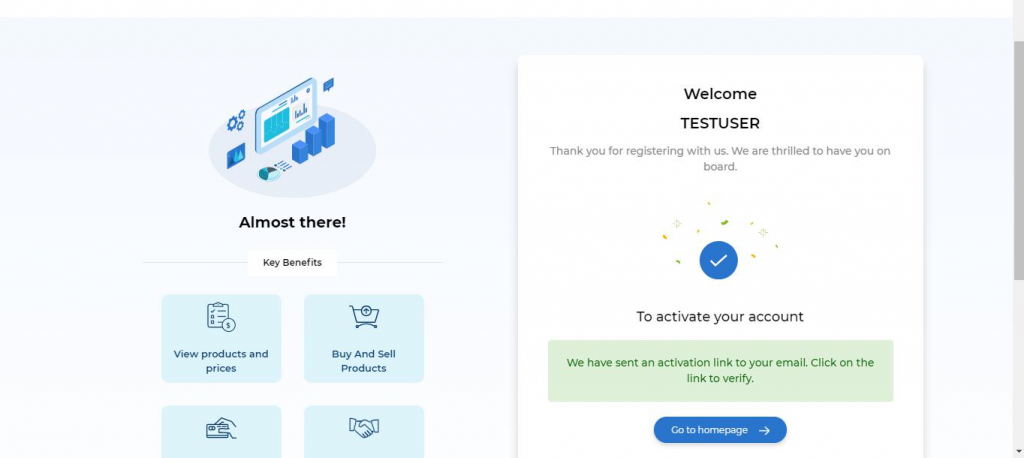
As shown in the above picture, an email has been sent to you to activate your account, which should show up in your email inbox as below-
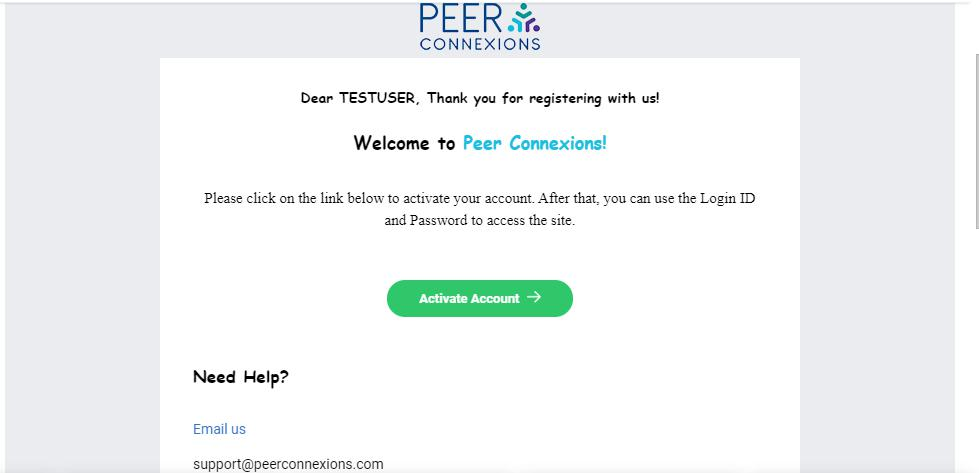
Once you click on Activate Account, you will be redirected to a page as shown below-
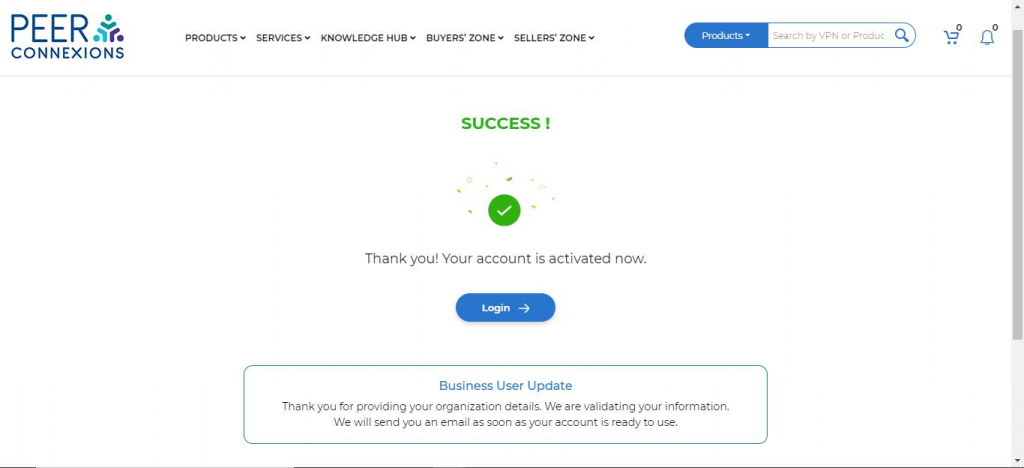
Now you can click on the Login button in the above page, and you will be redirected to the below page shown below-
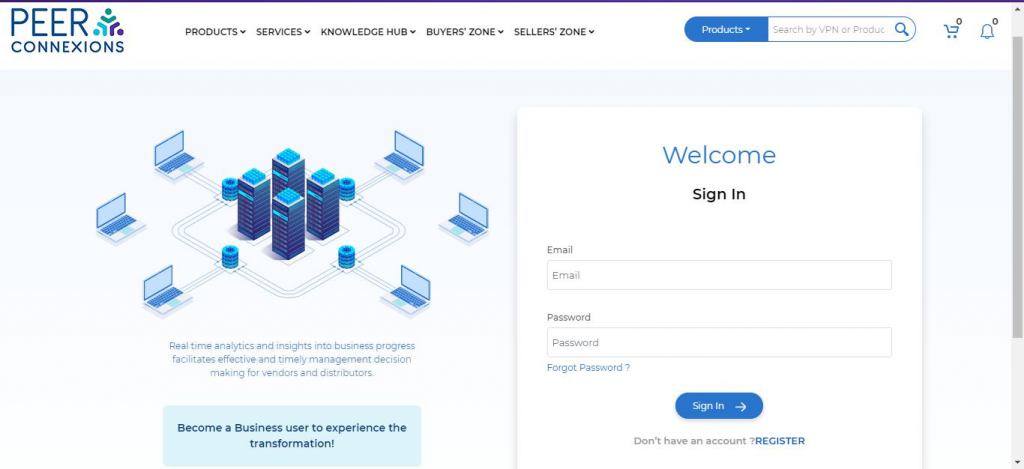
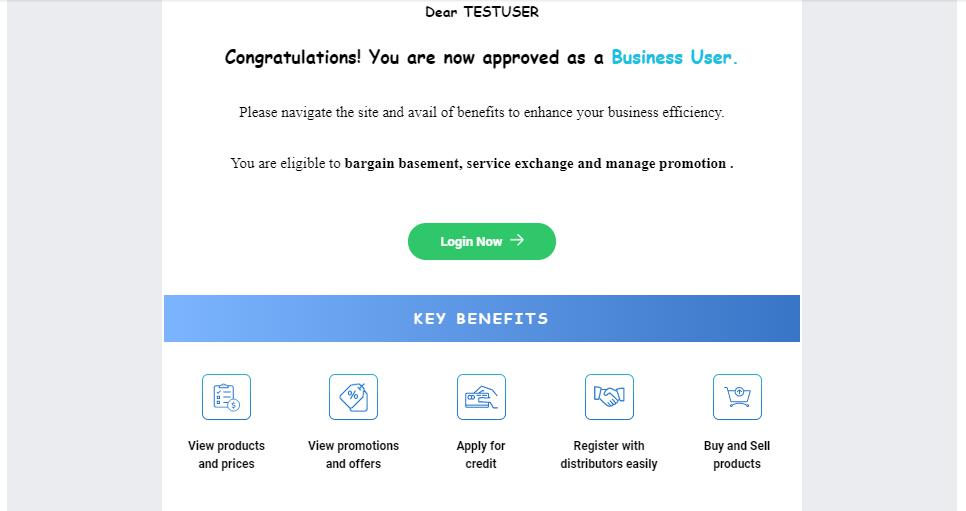
Once your registration is approved by the Admin, you will get an email as shown below-
After Login, you should be able to see a screen as shown below-
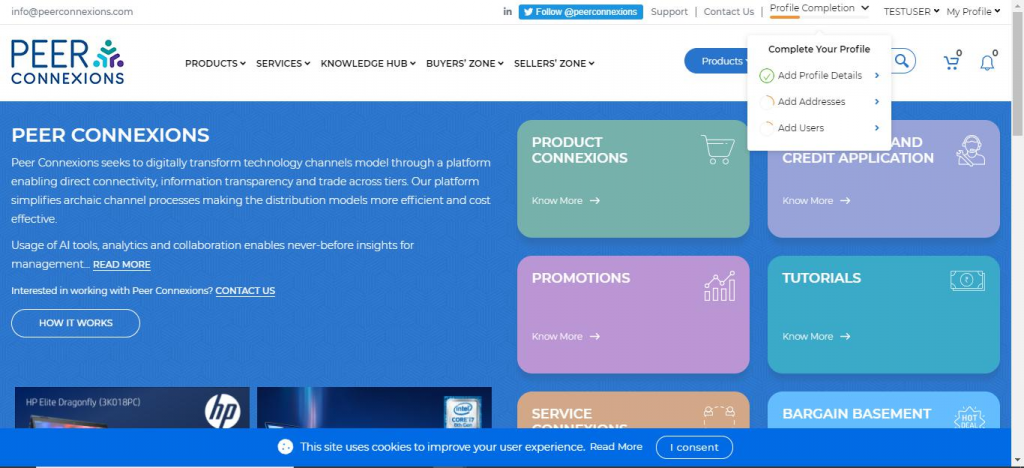
If you hover over the Profile Completion section as shown above, you will be able to see if your profile is completed.
The same can be seen on the homepage on scrolling down, as shown below-
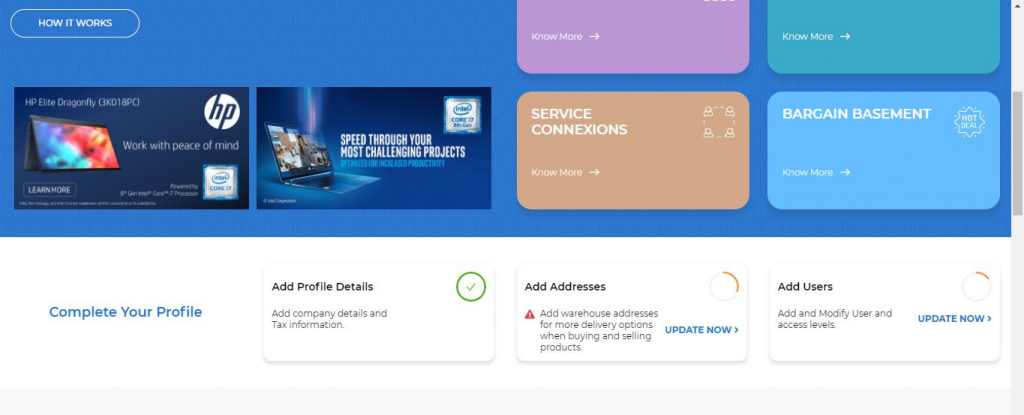
You can add addresses and users by clicking on the above sections as per requirement.
Step 3 – Once your reseller registration on the portal is approved you will be able to see the suppliers / distributors / sellers list who are already registered on the portal under Buyer’s Zone -> My Suppliers.
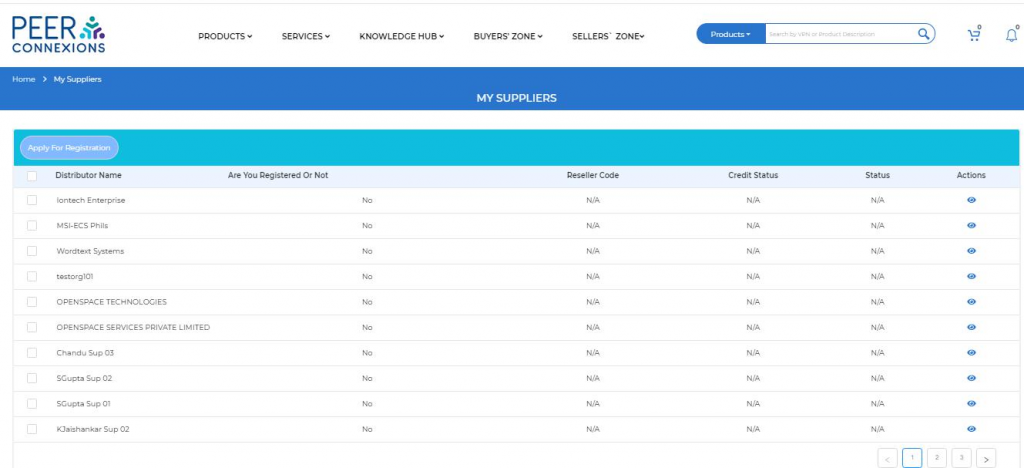
If you are already registered with the supplier offline, you can enter the reseller code under My Suppliers section by clicking on the already registered button against the required supplier.
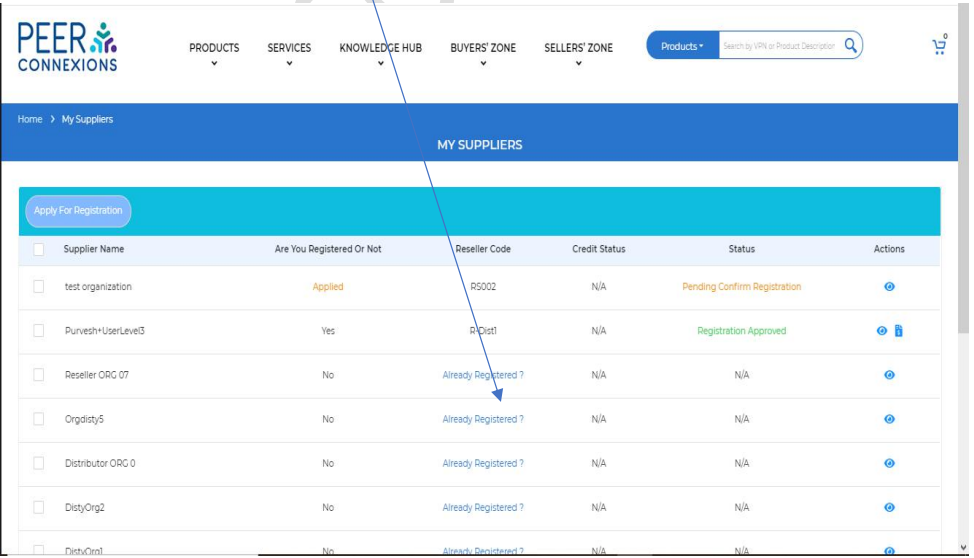
Once you click on the Already Registered button, it will ask you to enter the reseller code with which you have already registered with the supplier.
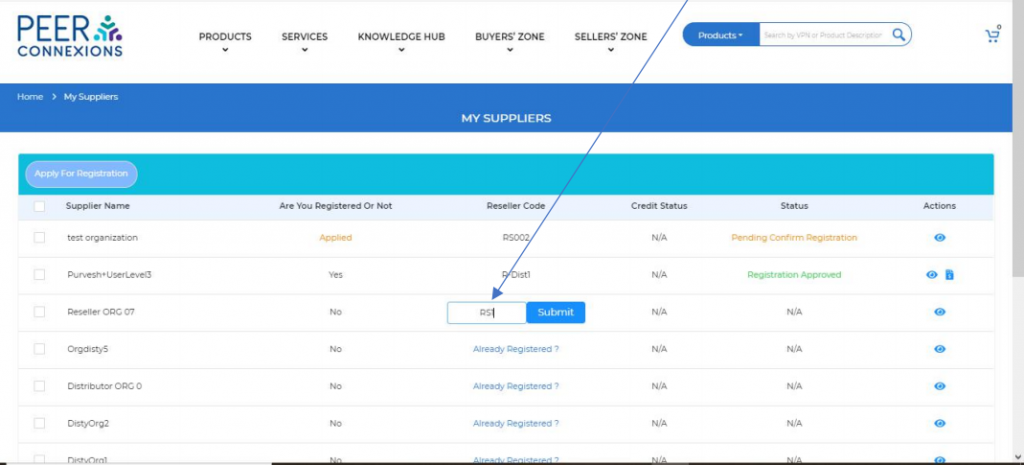
After clicking on Submit, it will give the pop-up showing reseller code applied successfully, if that code is correct, then the Status would change to Pending Confirm Registration.
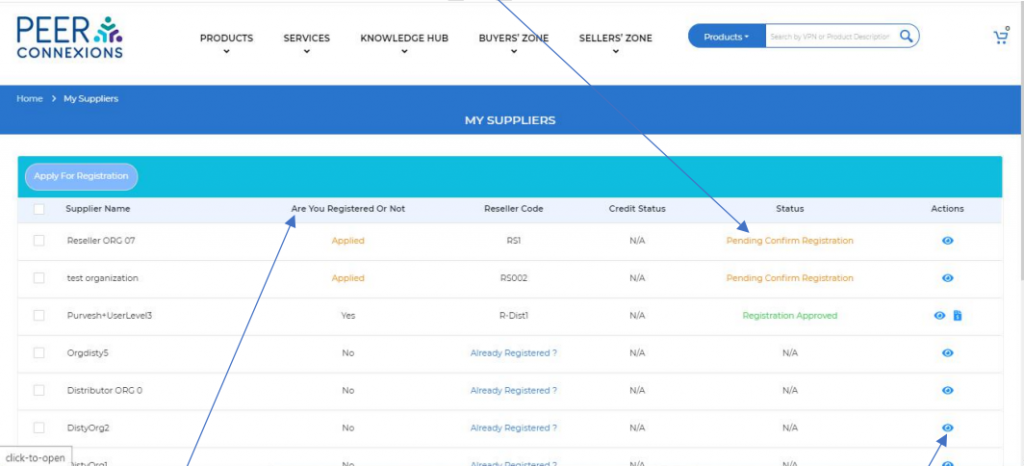
You can also see the actions performed for the Registration by the supplier by clicking on the actions icon.
You can also check your Registration Status with the Distributor, by checking the ‘Are you Registered or Not’ tab against the required Distributor.
When the distributor to whom you have applied for registration with reseller code, approves your application you will be notified by email (sample below)
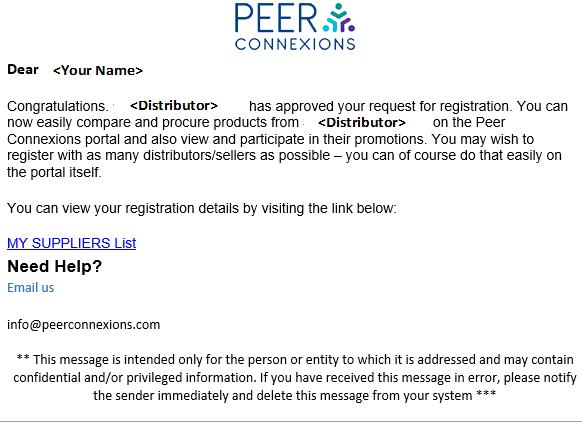
Your status will change to ‘Registration Approved’ and you will now be able to apply for credit indicated by as shown below

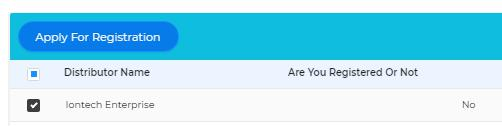
If you are not already registered with any supplier then you can do so by selecting / ticking ( ) the desired supplier and clicking the “Apply for Registration” button (refer below). If you are already registered with a distributor then you can apply for credit if not already done.
Note that you can register with multiple suppliers at a single time.
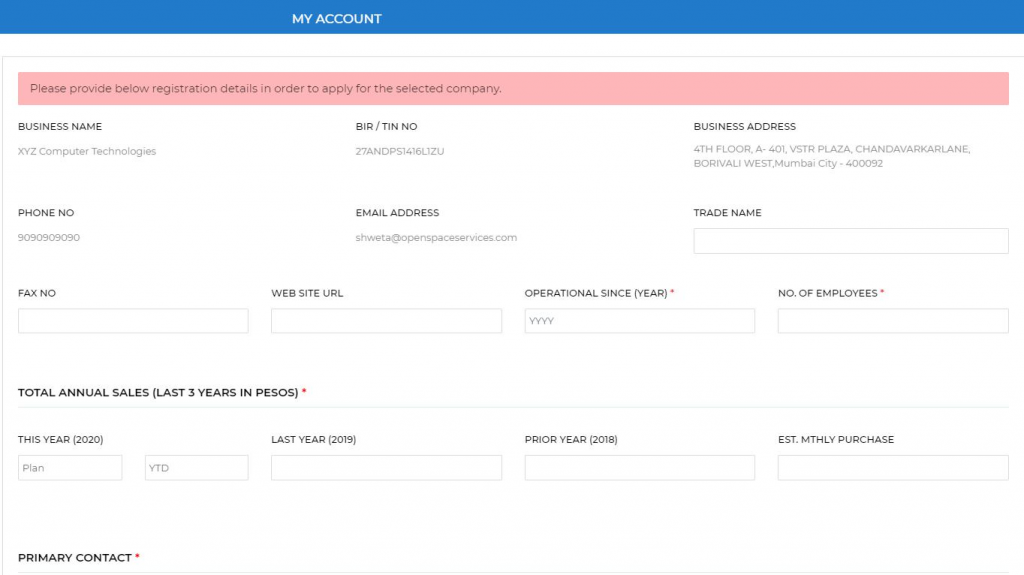
This will take you to the registration form page as shown below. You will have to fill-in all the relevant details and submit using the ‘Save’ button.
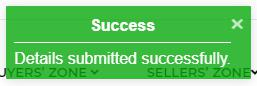
You will be intimated of the successful submission of the registration form as below on the same page (My Suppliers list page)

Step 4 – The next step is for you to download the filled-up registration form as a pdf, print the pdf, sign it, scan the signed pdf copy and upload this on the portal for the supplier to approve your registration request. To do this you need to again choose the ‘Apply for Registration’ button. This time the below window will pop-up for you to download the registration pdf and upload the signed copy.
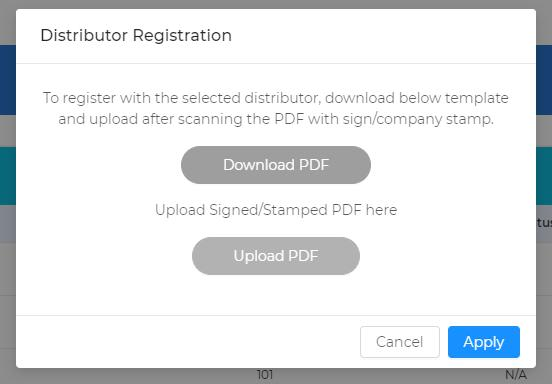
Once you upload the signed copy of the registration form select ‘Apply’ to submit the form. On successfully uploading the document, below message will pop-up.
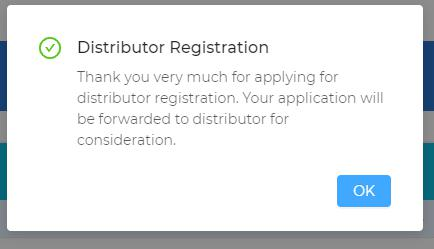
When you click ‘OK’, the page will refresh and your status will now change to ‘Pending Registration Approval’ against the applicable distributor (refer below)

You can also view your application history by selecting ‘eye’ symbol ( ) under ‘Actions’ against the relevant distributor. Registration application actions in descending chronological order will be displayed.

You will also receive an email notification as below.
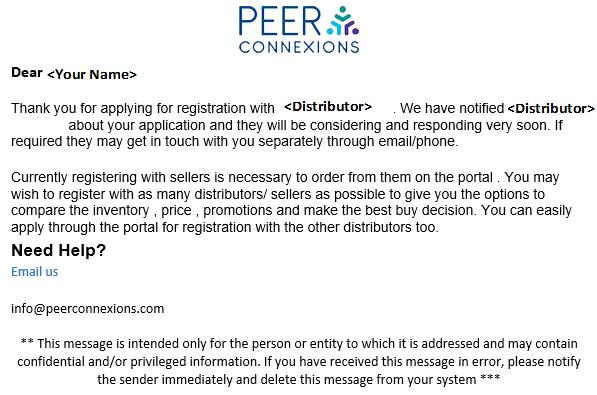
Step 5 – When the distributor to whom you have applied for registration, approves your application you will be notified by email (sample below)
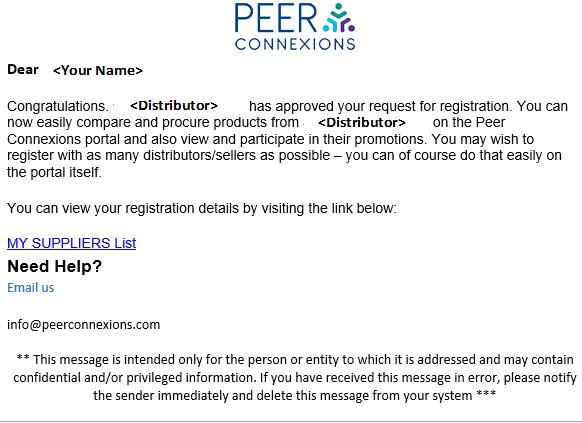
Your status will change to ‘Registration Approved’ and you will now be able to apply for credit indicated by Icon as shown below-

Step 9 – Credit application – As mentioned above clicking the icon under actions will take you to credit application page wherein you have to fill-in all the required details.
The page below will come up.
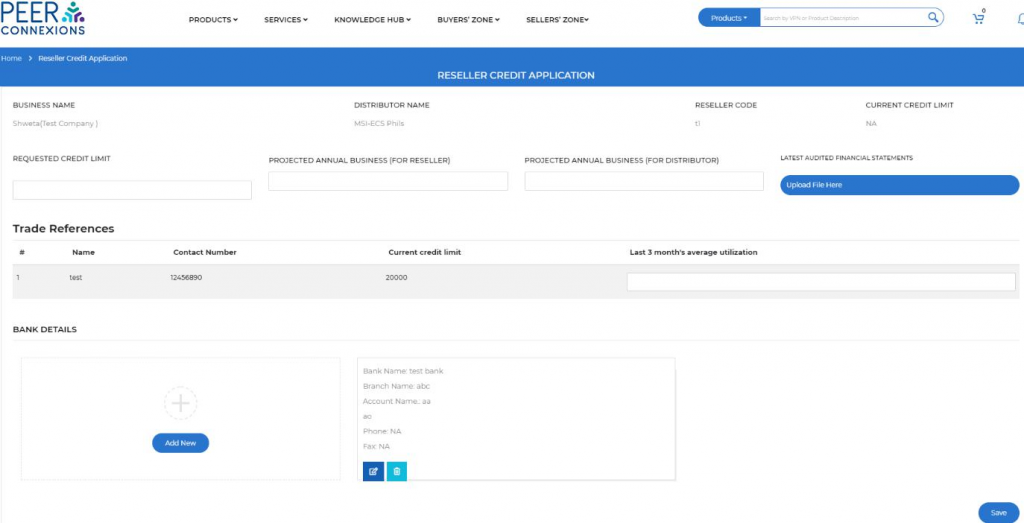
On successful submission of credit application below pop-up will appear. You have to download the filled-up credit form as a pdf, print the pdf, sign it, scan the signed pdf copy and upload this on the portal for the supplier to approve your credit request.
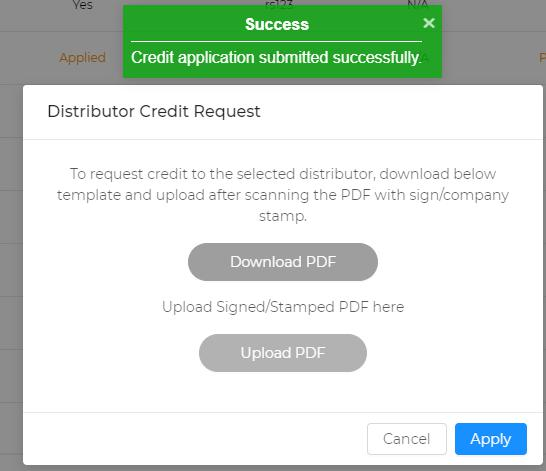
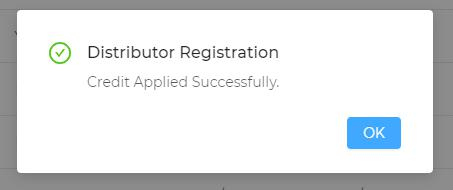
To upload click the icon button which is the ‘Submit credit application’ button and the same pop-up will appear. Select Upload pdf -> Apply. On successful upload you will get a confirmation as below.
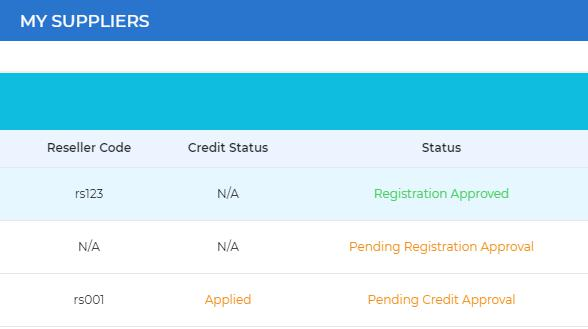
The ‘Credit status’ on ‘My Suppliers’ page will change to ‘Applied’ and ‘Status’ will change to ‘Pending Credit Approval’ against the distributor to whom the application is submitted (refer below)
Once credit is approved ‘Credit Status’ will show as ‘Yes’ and ‘Status’ will change to ‘Credit Approved’
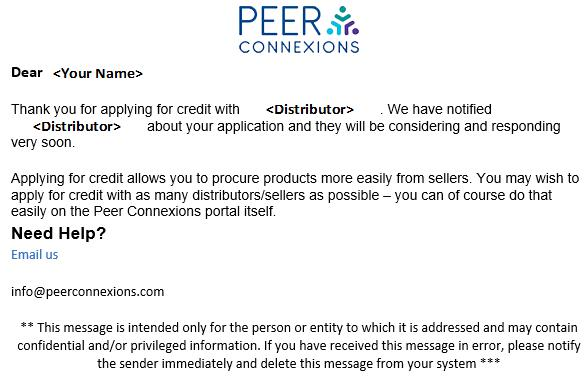
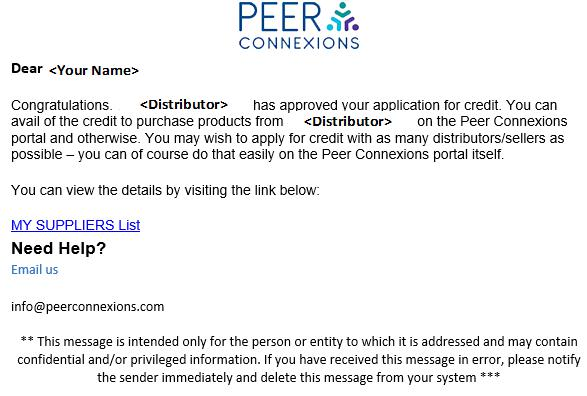
You will also receive an email on credit application as well as on credit approval by distributor (refer below sample emails).
Credit application email:-
Credit approval email:-
With this you are now fully set to transact on the portal!!