
This Module is called ‘Offer Add-Ons @Discount’ using which the seller can provide special discount
on attached products which can be sold on the portal with the target/main product.
We will see the setup in detail as below :
1. For Distributors/Sellers
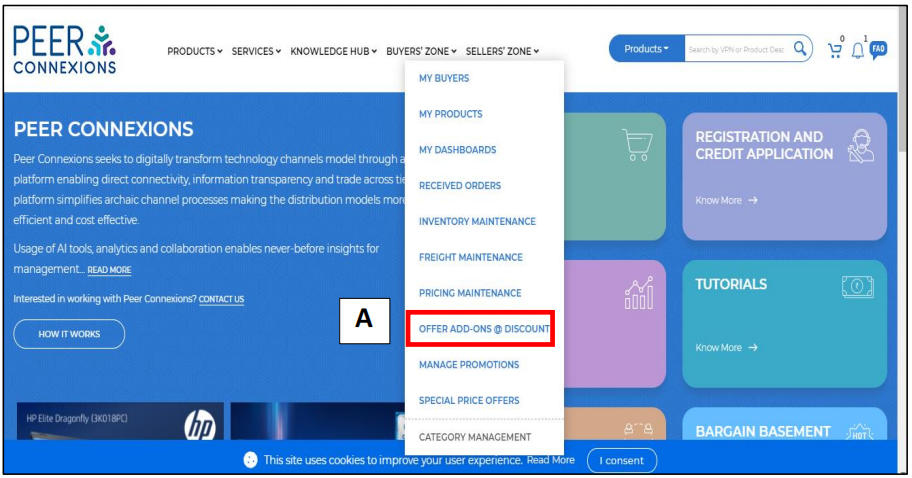
You can access the ‘Offer Add-Ons @Discount’(A) from the Seller’s Zone as shown below-
Once you click on it, you will be redirected to a new page as shown below-
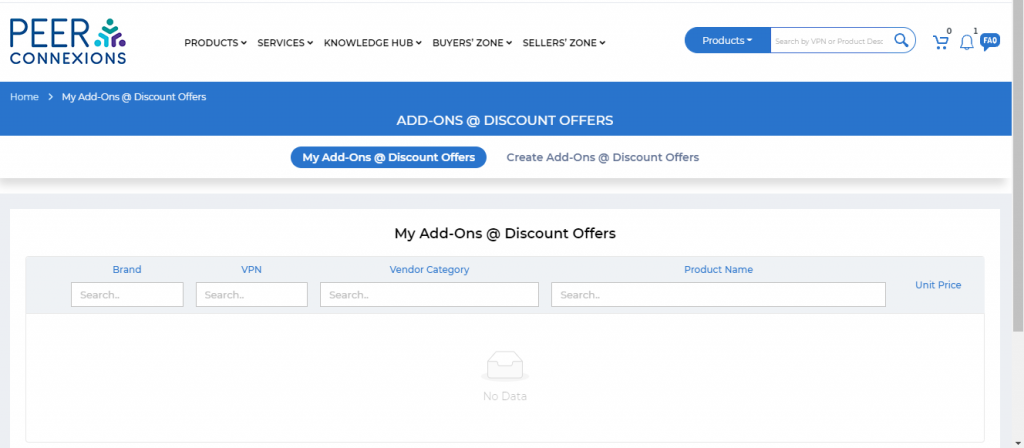
You can click on Create Add-Ons @Discount Offers, to create a new offer, which will open a page
as below-
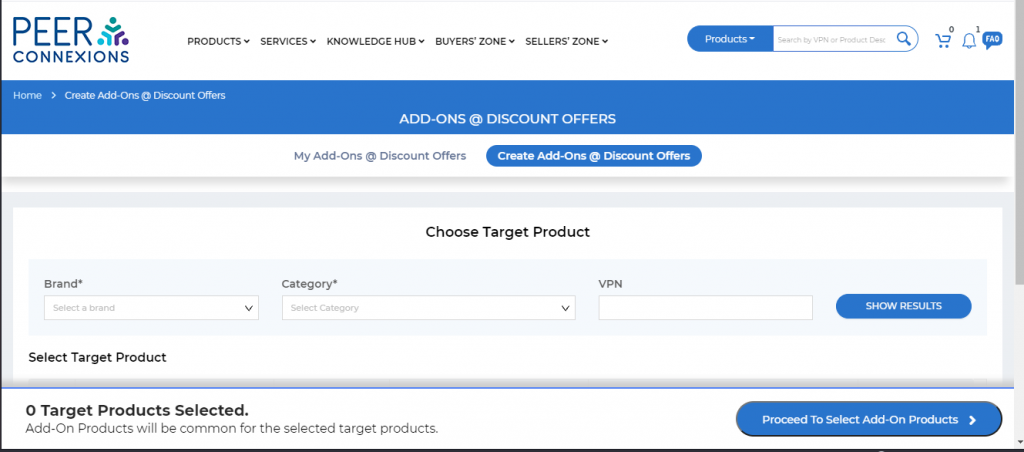
In the above screen, you can search the product by selecting brand>show results or selecting
brand>category>show results or directly searching the VPN and clicking on show results as shown
below-
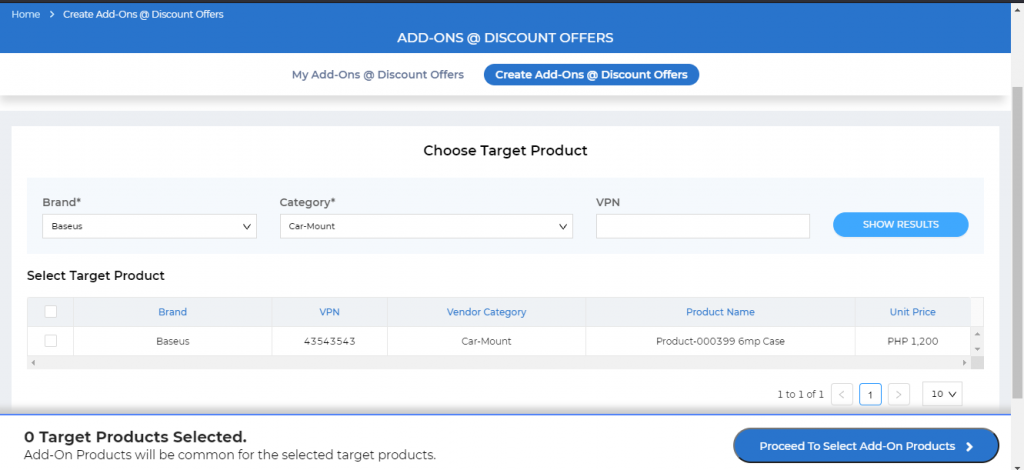
Note: In order to create a Discount offer, it is mandatory that the Product should be authorized to be
sold by you and have active pricing for it to show in the list of products above.
Now you can choose the Target Product from the above list. A Target Product is the main product on
which you will be attaching other products which will be at discounted prices if they are bought along
with the Target Product.
Once you select a Target Product, the count(A) will get increased and then you can proceed to select
the Add-On Products (B) as shown below-
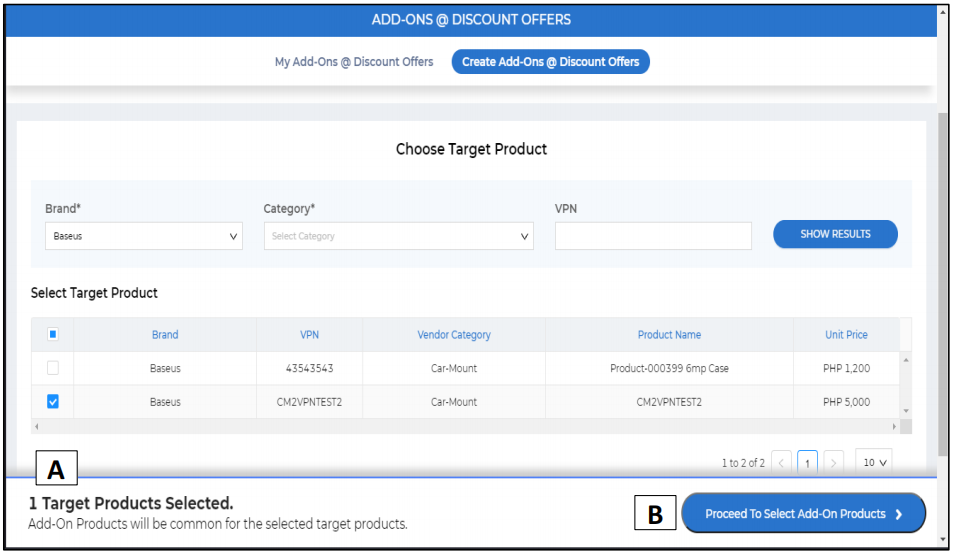
Once you click on Proceed to Select Add-On Products, you will be redirected to the below screen-
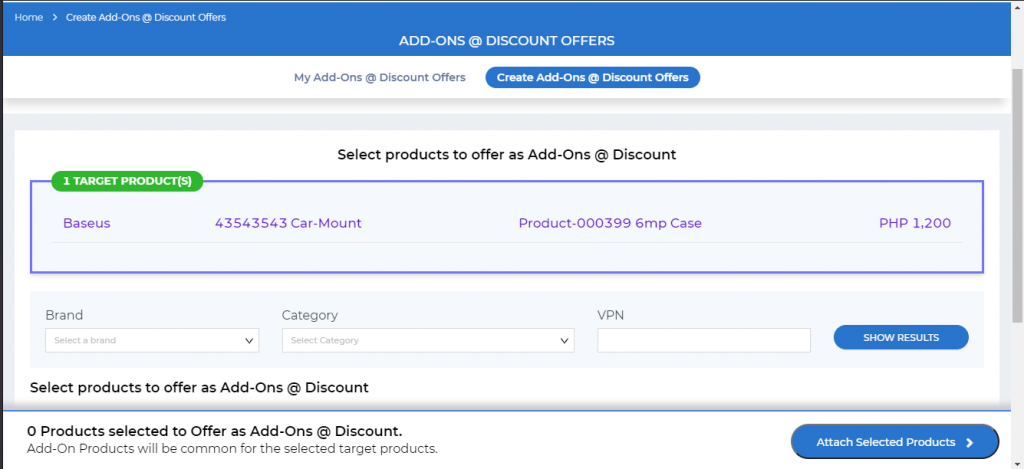
Now you can select the products which you want to add as Add-On Products with the Target Product
as shown below-
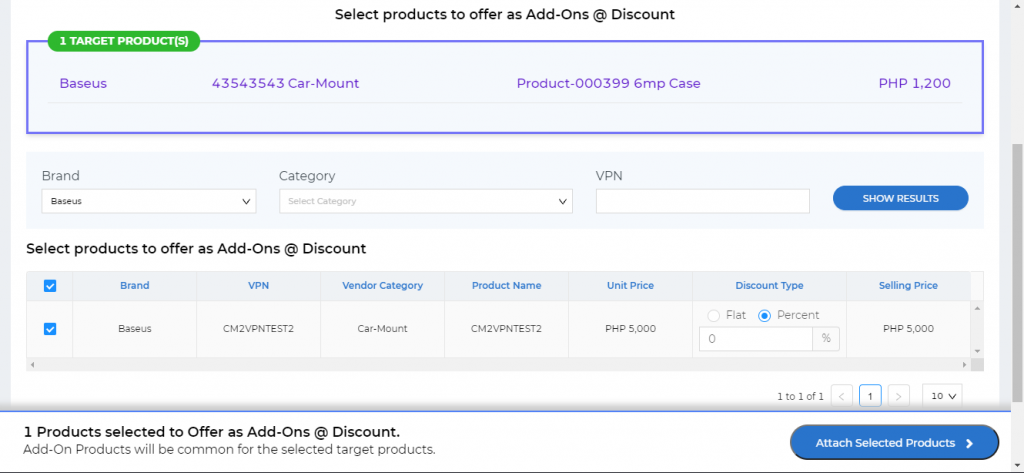
In the above screen, you can select the Discount Type either Flat or Percent. Do note that the
discount on any product in the above screen should be in the range of 25% of the Unit Price to less
than 100% of the Unit Price.
Once you set the discount price and click on Attach Selected Products, you will get a message as
shown below-
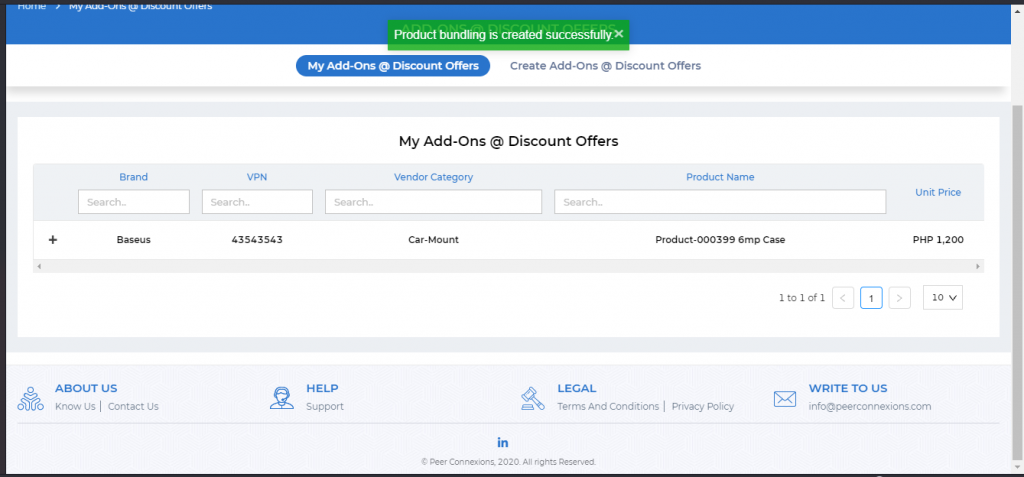
On expanding the target product, you will see the details of the attached products as below-
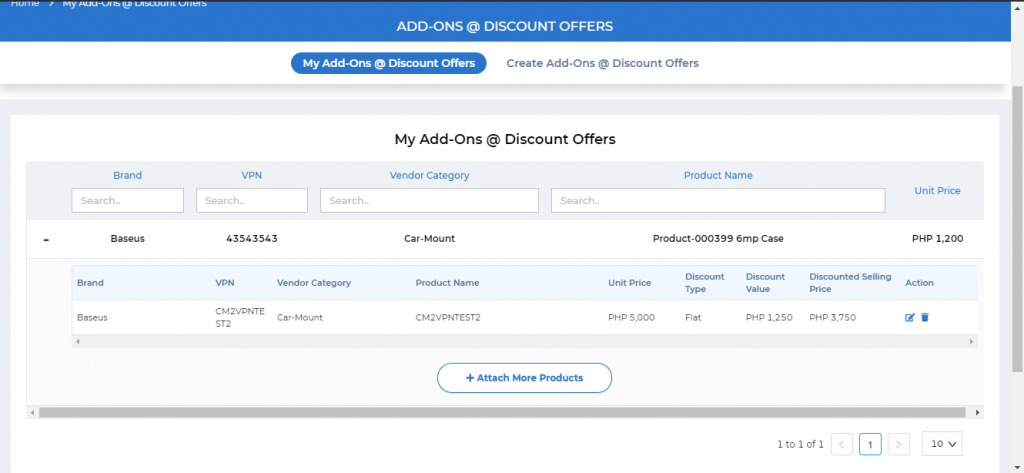
You can also Attach More Products in the same Target Product by clicking on the Attach More
Products Link.
You can click on Edit to change the Discount value as per requirement for the Attached Product as
shown below-
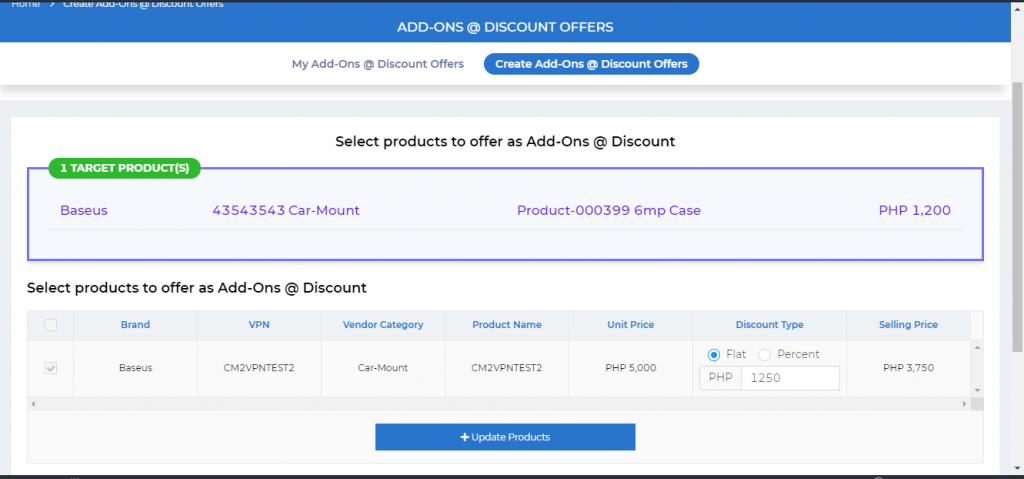
Once you click on Update Products, the new discount value will be updated for the specific
Add-On Product.
This should help you with the Setup of Offer Add-Ons @Discount on the portal.
2. For Resellers-
Resellers can view the Offer Add-Ons @Discount from Products>Promotions>Offer Add-Ons
@Discount as shown below-
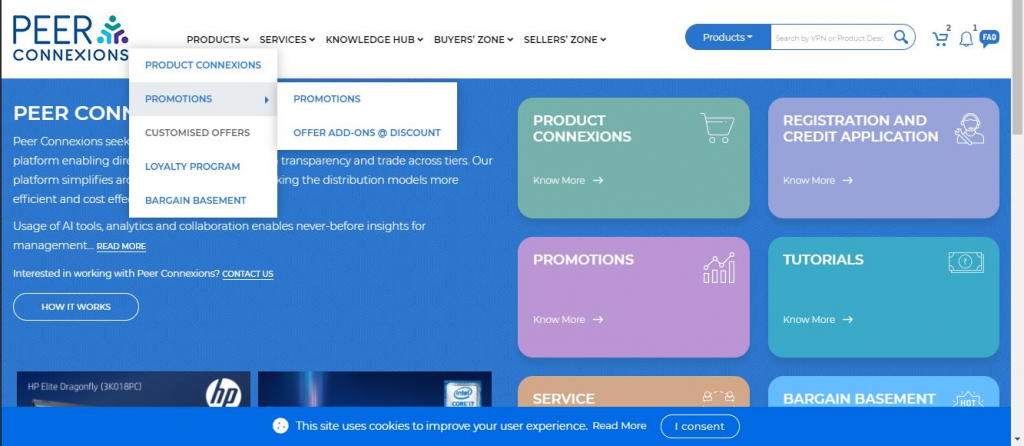
Once you click on Offer Add-Ons @Discount, you will be directed to a new page as below-
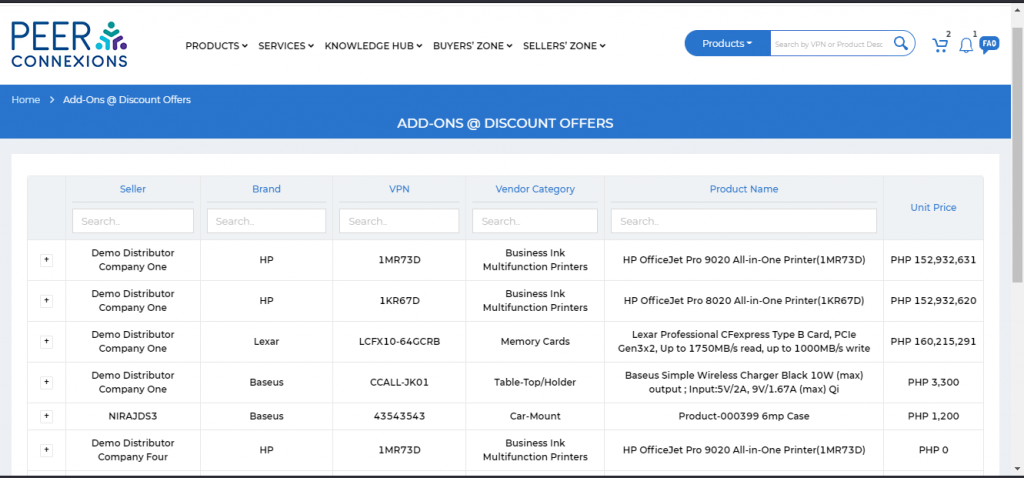
Here you can see all the products that are listed on the portal with add-on offers.
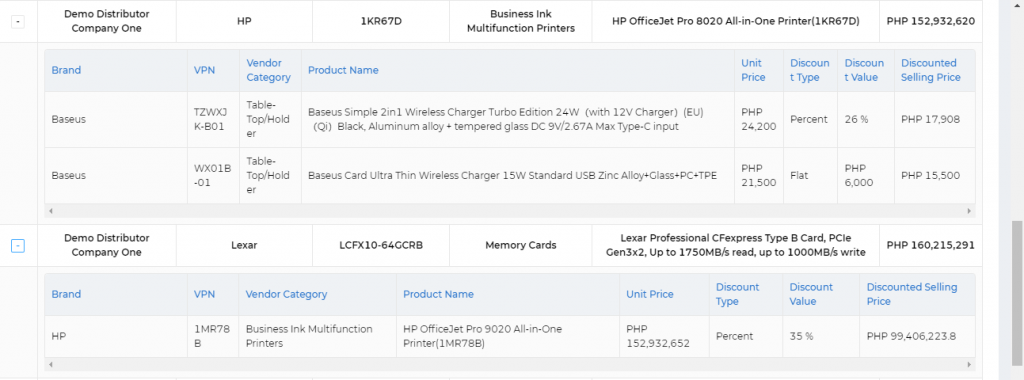
You can expand the plus sign on each product to see the Attached Products and the Discount on
them as shown below-
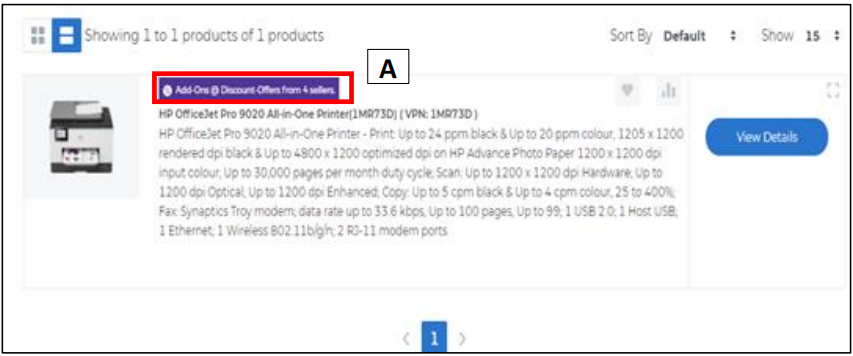
If any VPN has Add-Ons @Discount (A) with it, on the Product Connexions page, you will be able to
see it as shown below-
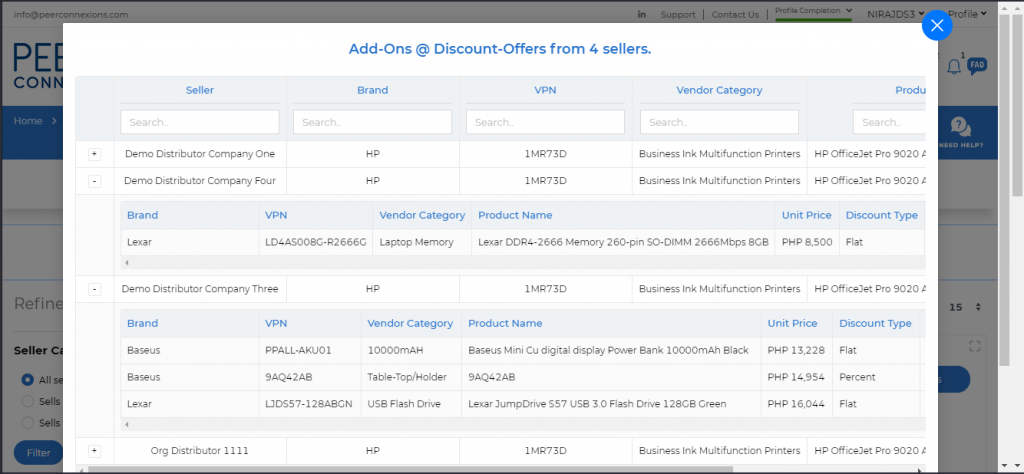
Once you click on this purple colored button (A), you will see the details of the Add-Ons @Discount
as below-
Once you click on View Details for the product, you will see a page as shown below-
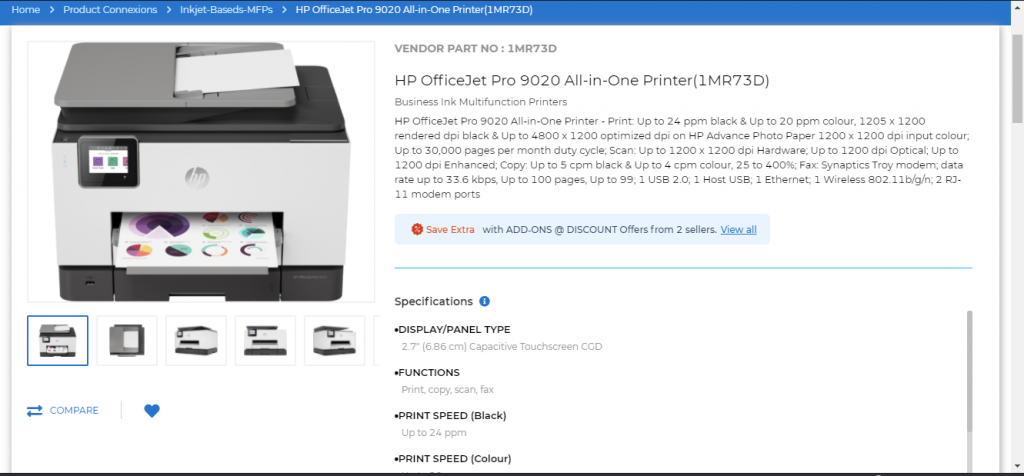
You can see the number of Sellers who are providing Add-Ons @Discount on this target product.
When you click on View All, you will be redirected to the below page-
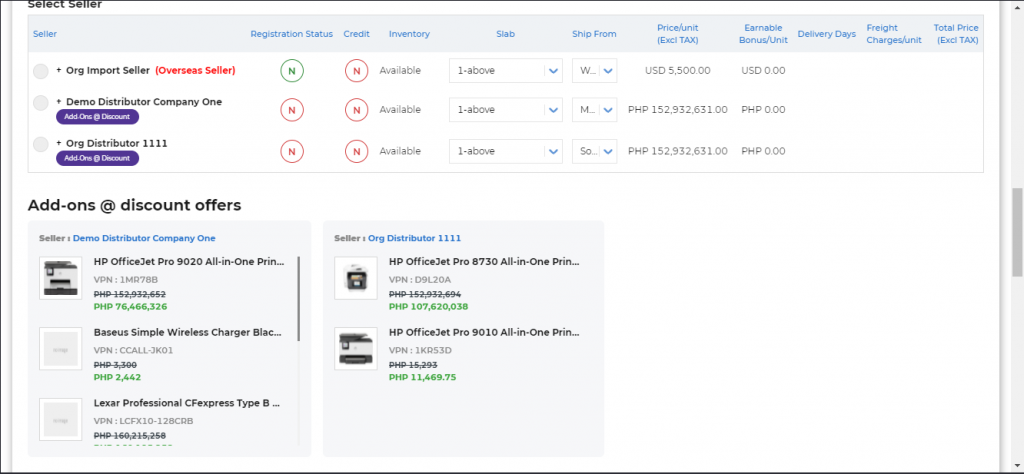
Here you can see the various products that are added as Attached Products to this Target product by
multiple sellers.
You now need to select the Ship To Location, Select the seller, select the Add On Products as shown below-
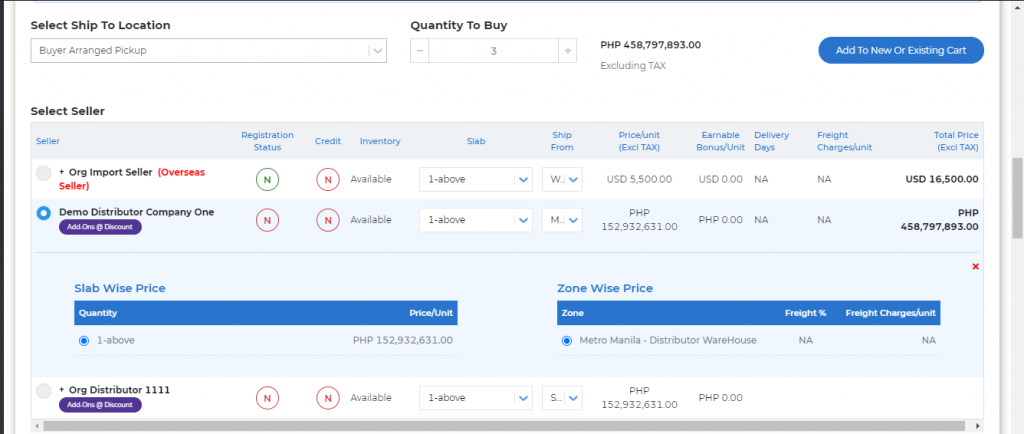
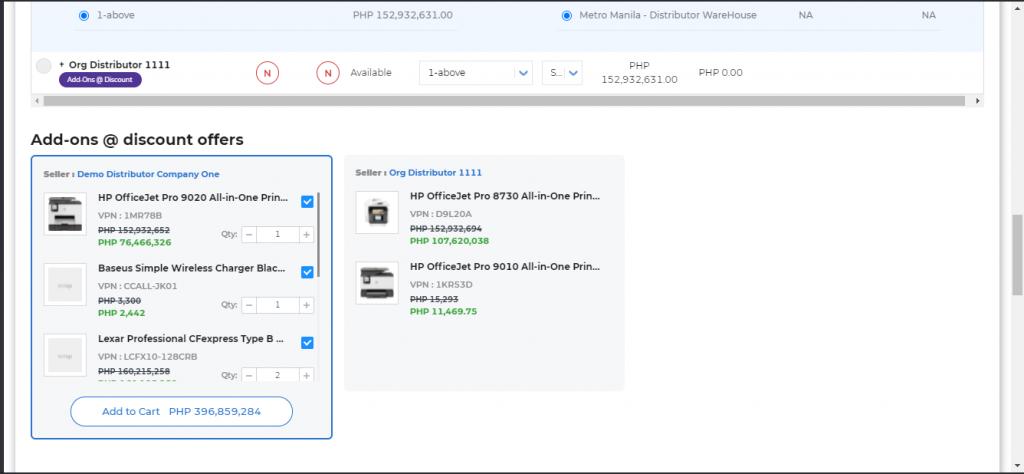
Note:- The quantity of the Attached Products/Add-Ons should be equal to or less than the quantity of
the Target Product/Main Product. As seen above, the quantity of the main product is three, hence
three add-on products with one quantity can be added OR one add-on product with three quantities
can be added.
After selecting the add on Products of your choice, you can click on the add to cart button below it,
which will redirect you to the below page-
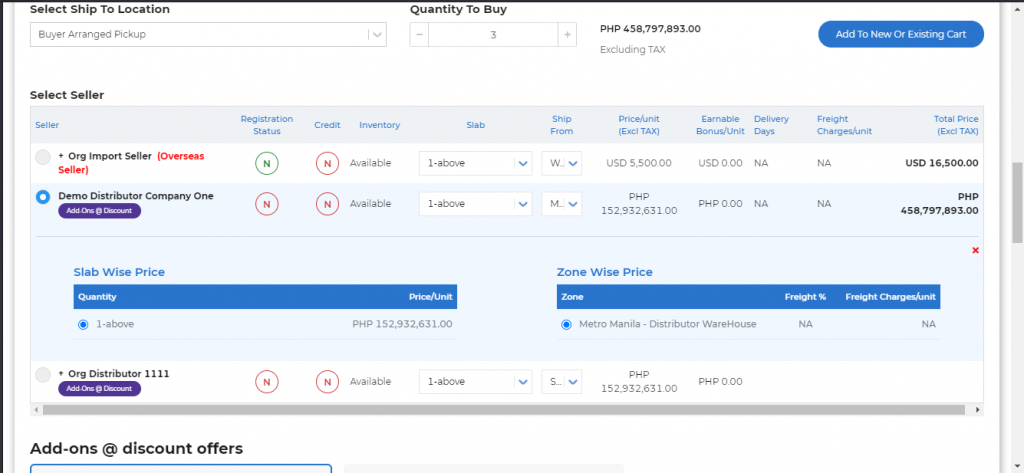
Here you can confirm all the details and click on the Add to New Or Existing Cart button
The preview of the order in cart is shown below-
Here you can confirm all the details and click on the Add
to New Or Existing Cart button The preview of the order
in cart is shown below—
Here you can confirm all the details and click on the Add
to New Or Existing Cart button The preview of the order
in cart is shown below—
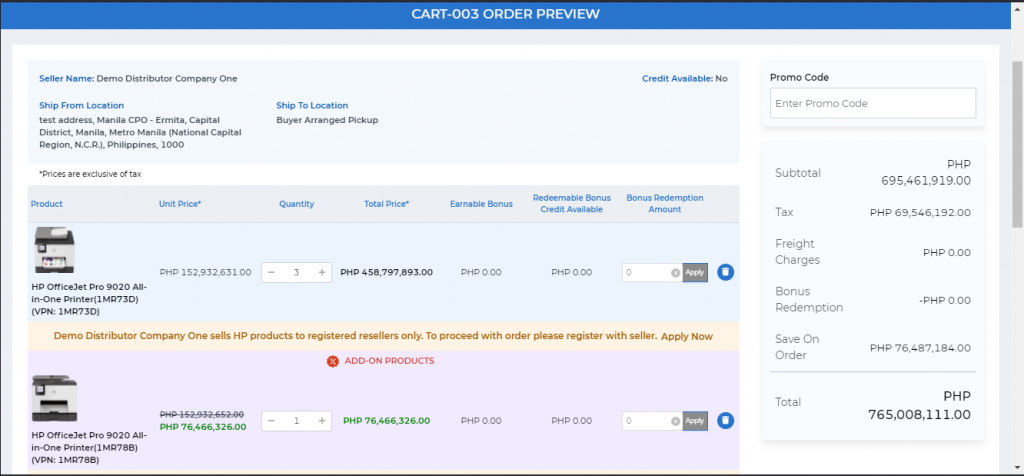
You can see that 1MR73D is the main product and the Add-On Products are shown below it.
You can now verify the details and place the order by clicking on the submit order button as usual.
Hope this will make it easier to understand this new and exciting module ‘Offer Add-Ons @Discount’
End of the document