
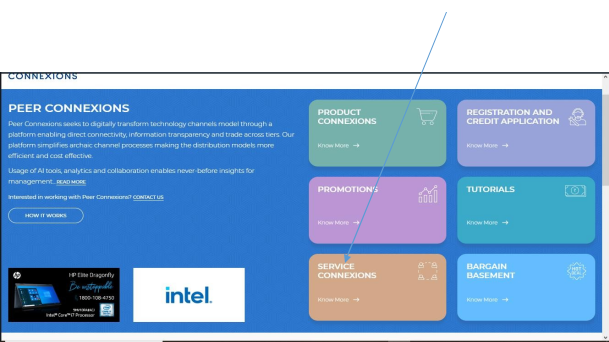
You can use service connexions on Peer Connexions portal using the Service Connexions option available on the homepage.
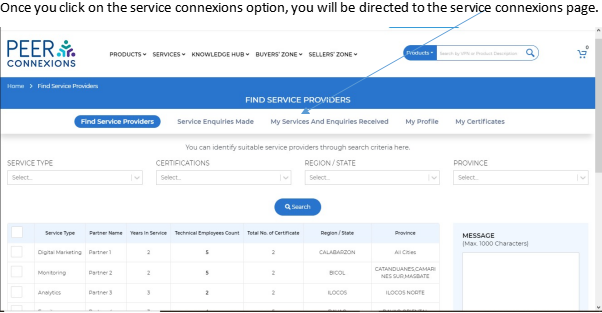
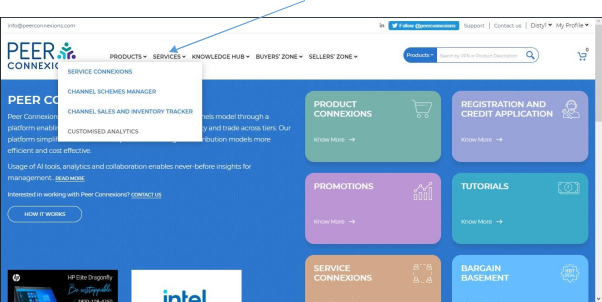
You can also access the above page by going to Services>Service connexions from the homepage.
Now you will be presented with five tabs, each of which is explained below:-
(Note: – Only Level 3 Manager and Administrator users can access all the five tabs, Level 1 and Level 2 and Level 3 associate users can only access first two tabs i.e. Find Service Providers & Service Enquiries Made)
1. FIND SERVICE PROVIDERS:-
In this section, you can search for all the providers on the portal that provide a specific type of service/certification across the required region/state and province.
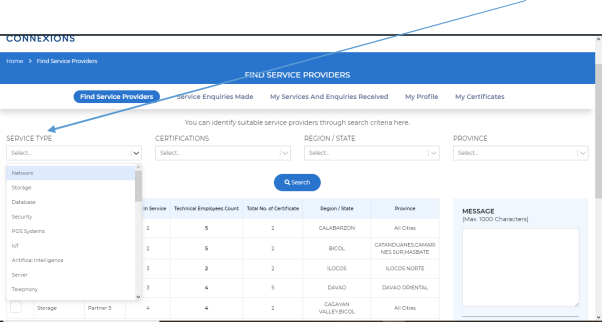
Required certifications can also be searched as shown below –
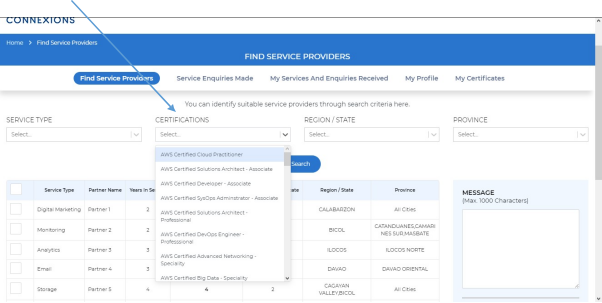
Once the required type of service/certification is selected, you can select the required region/state.
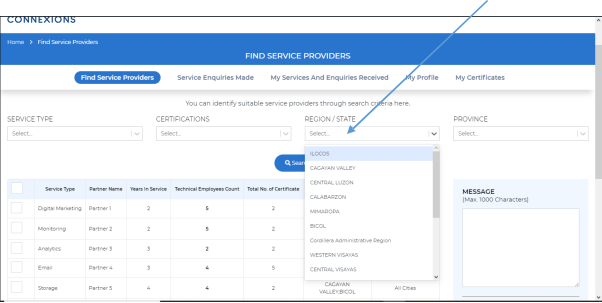
After selecting the region, you can select the province and click on the search button-
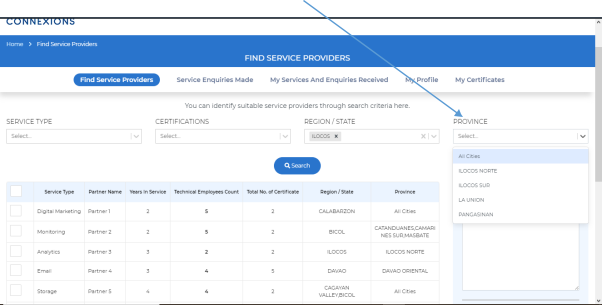
Once you click on search, you will be presented with the list of providers as per the filters selected and you can now, select any one of them and send a service inquiry message to them as below-
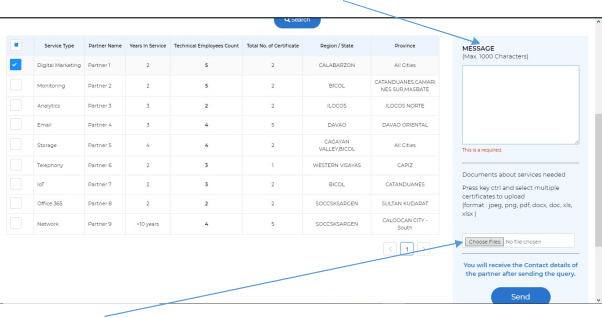
You can also add documents about the required services as shown above.
2. SERVICE ENQUIRIES MADE:-
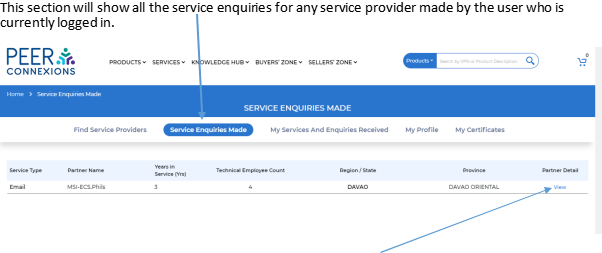
In this section, you can click on the view button under the Partner Detail to see the details of the service provider.
3. My Services and Enquiries Received:-
This section contains all the services listed by the user who is currently logged in on the portal as well as the enquiries received for any services by any user.
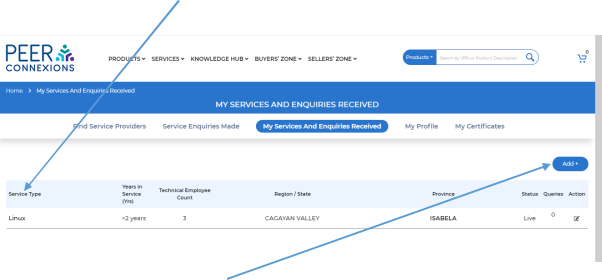
In this section, you can click on the Add button to add the required service to the portal.
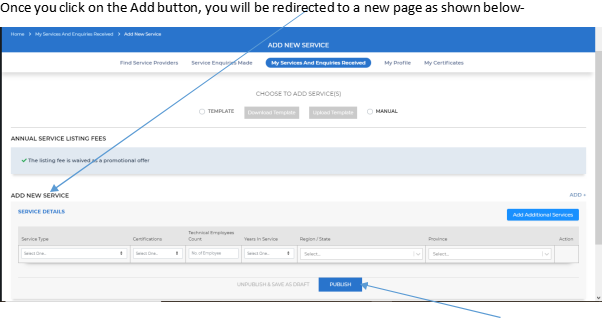
Here you can select the service type/certifications and all the required options and Publish the service to the portal.
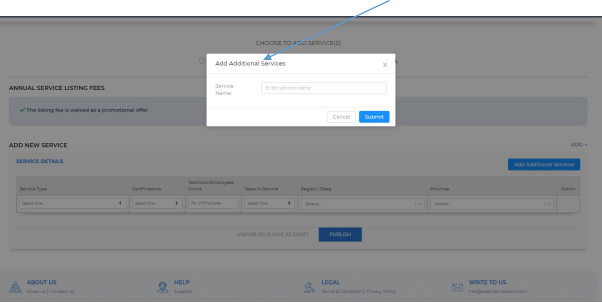
In order to add Additional Services other than those present in the drop-down, the user can click on Add Additional Services option and it will ask the user to add the required service as shown below-
4. My Profile:-
This section contains detailed information about the user who is currently logged in to the portal-
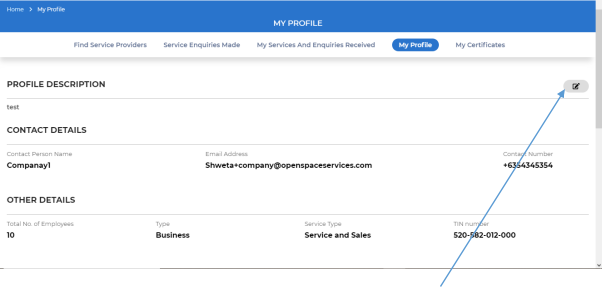
This can be edited as per the requirement of the user by clicking on the edit button.
On scrolling down, you will be able to add the Customer Testimonials for your company and Technical Awards Won by your company clicking on the Add/Edit option.
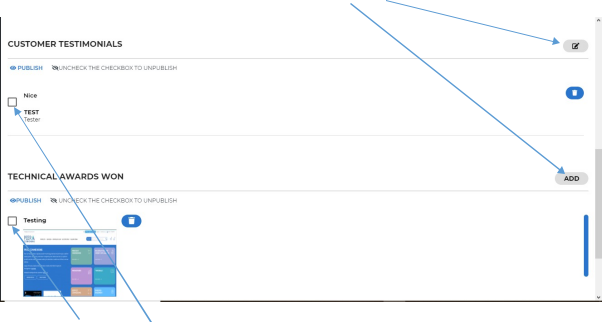
Once you uncheck the checkbox for the added Customer Testimonials or Technical Awards Won, it will get unpublished.
5. MY CERTIFICATES:-
In this section, the user can add the Certifications which their employees have earned by clicking on the add button.
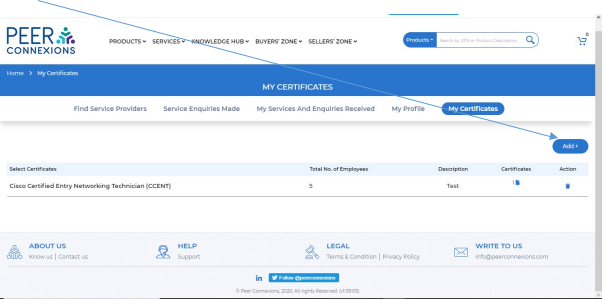
Once you click on the Add button, you will be redirected to Add Certificates page as shown below-
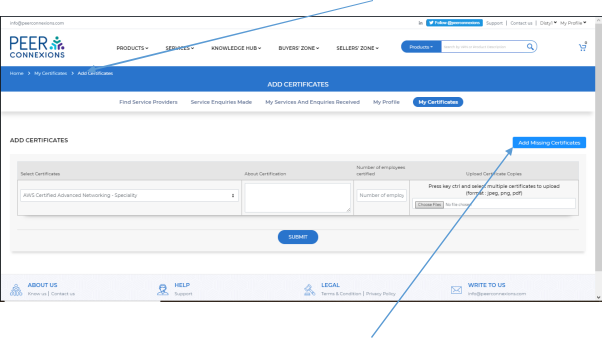
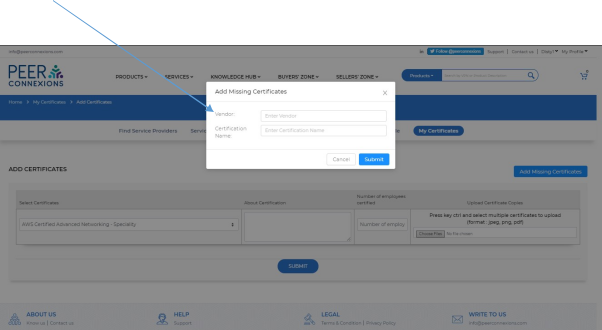
In the above section, the user can select the required certificate and fill in the details. If the certificate is not present in the list, the user can click on Add Missing Certificates option.
Once you click on Add Missing Certificates, it will open up a pop-up where you can add the name of the Vendor and Certification Name and ‘Submit’ it as shown below.
Now you should be able to use the service connexions module with ease.
THANK YOU