
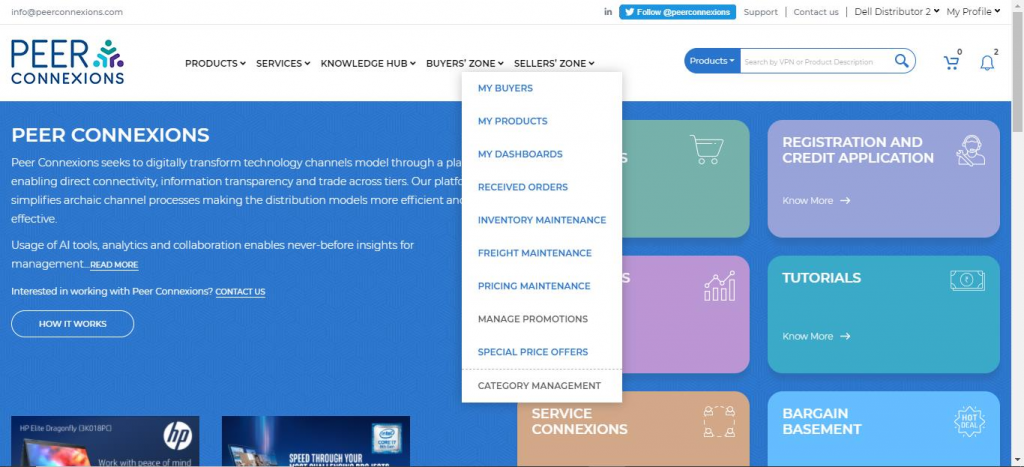
You can access the ‘Special Price Buy Offer’ from the Homepage by clicking on Sellers’ Zone-> Special
Price Offers -> as shown below-
You will be directed to the page shown below-
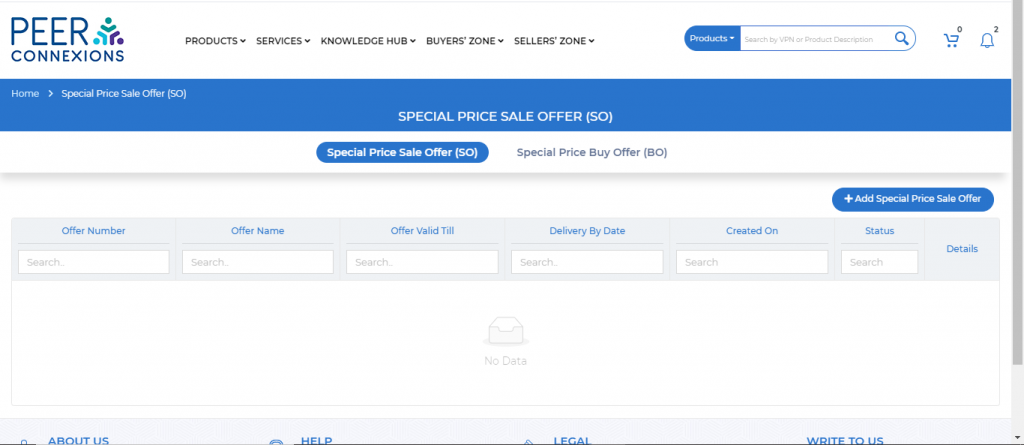
Now, click on ‘Special Price Buy Offer (BO)’ to see the offers created by the Buyer
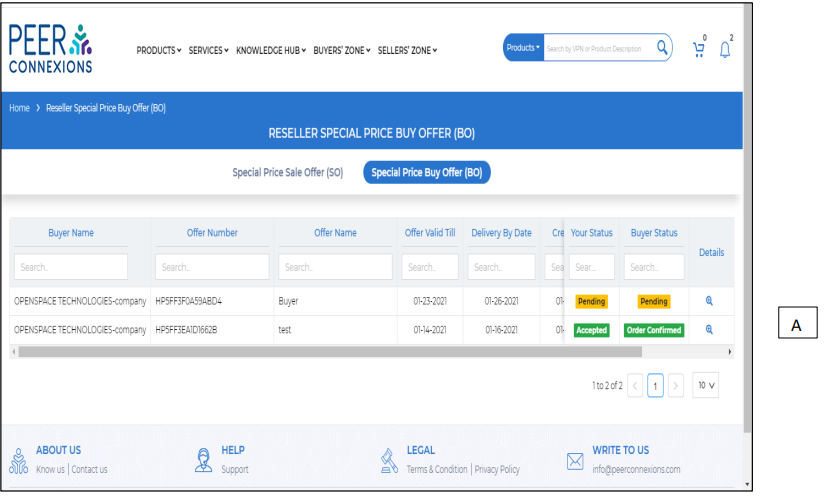
Here, you can click on the magnifying glass symbol(A) under ‘Details’ to see the details of the specific
offer.
If the buyer has added the option to create a counter offer, you will see the counter offer details as
below-
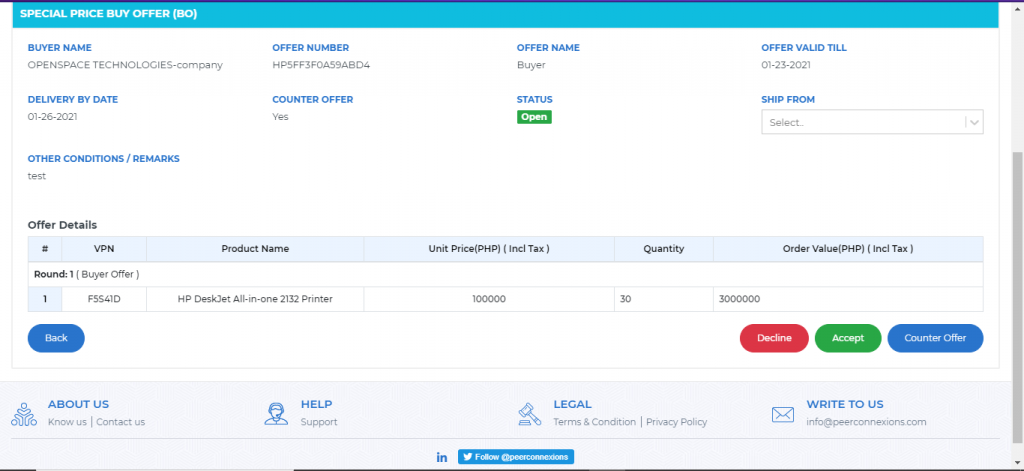
If the buyer has not provided the option to create a counter offer, you will only have to either
‘Accept’ or ‘Decline’ the offer.
Note: The counter offer will have maximum three rounds and in the last round, you (the seller) will
have to either accept the offer or reject it.
If you click on ‘Counter Offer’, it will provide you an option to create your proposal as shown below-
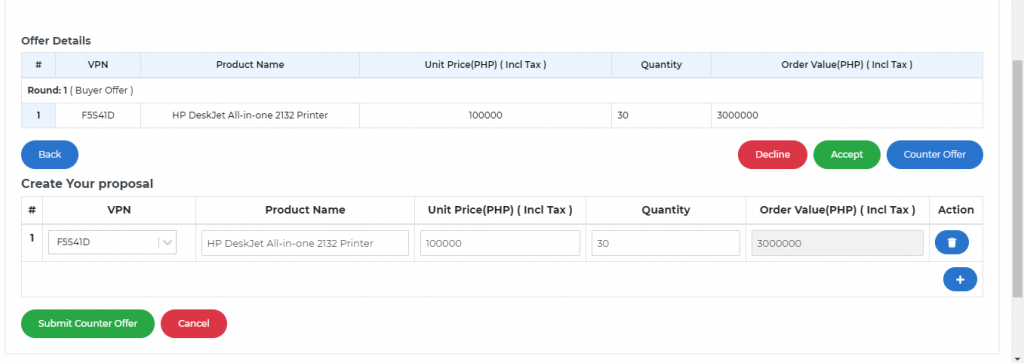
You can add your price and quantity as per requirement and submit the counter offer.
Now, the Buyer will have the option to accept, decline or create a counter offer again.
If he creates a counter offer, you will only have the option to Accept or Decline as this is the third
round of negotiation as shown below-
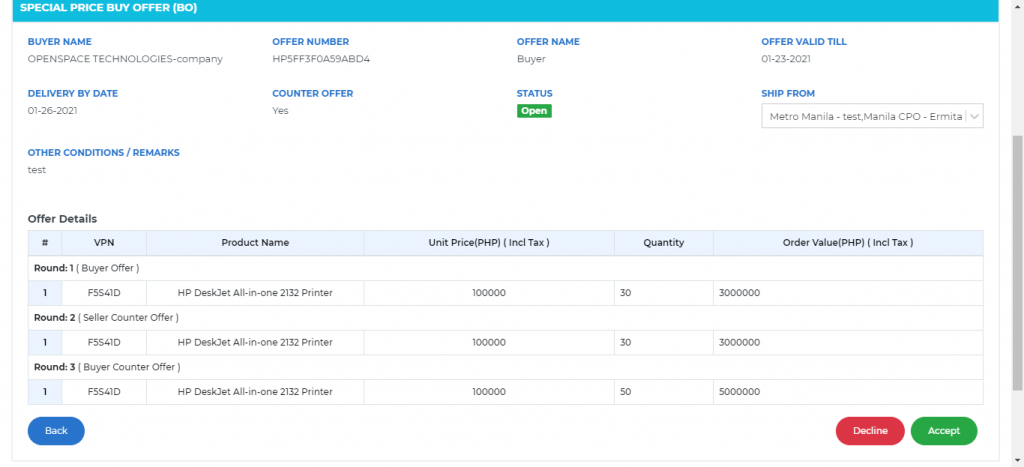
Now, if you accept the offer, you will have to wait for the Buyer to place the order.
This should help you in handling a Special Price Buy Offer created by a Buyer.
———————————————End of Document ————————————————–