
The ‘Special Price Sale Offer’ can be accessed from Seller’s Zone -> Special Price Offers
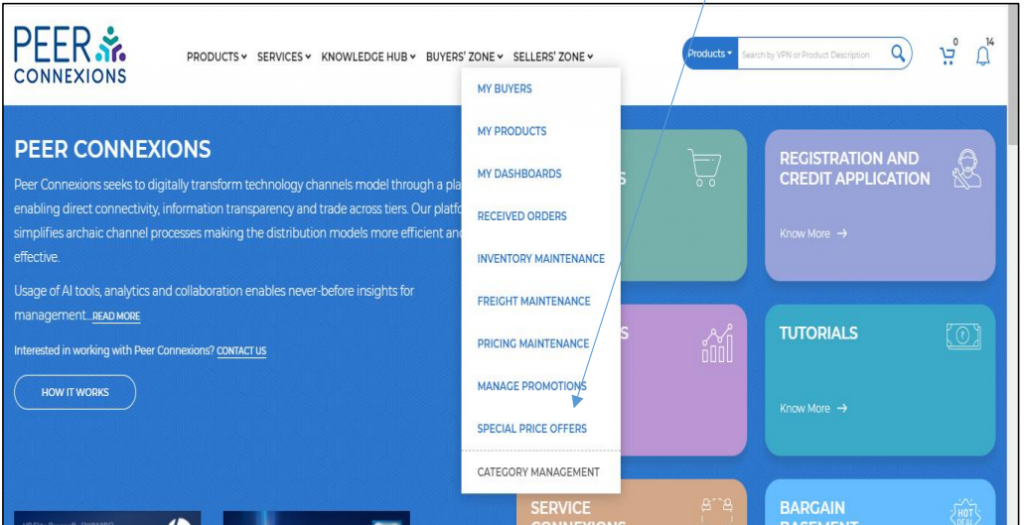
Once you click on it, you will be directed to a new page as shown below-
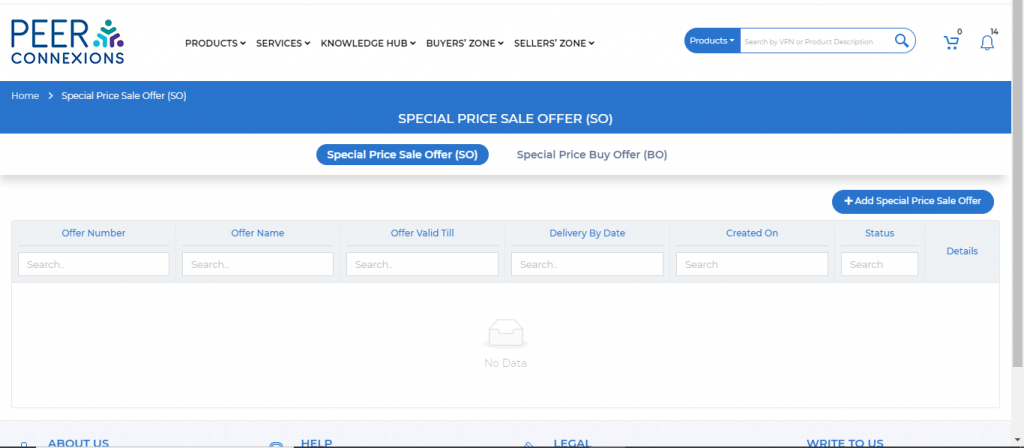
Here, you can click on ‘Add Special Price Sale Offer’ to create a Special Price Sale Offer.
Note: An associate level user does not have the permission to create a Special Price Sale Offer.
A new page will open up as shown below-
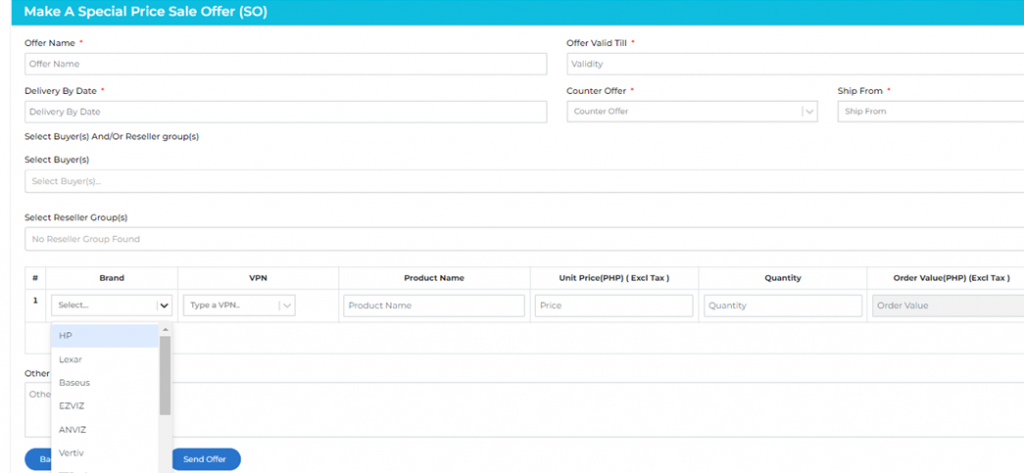
Here, you need to fill all the required details as shown below-
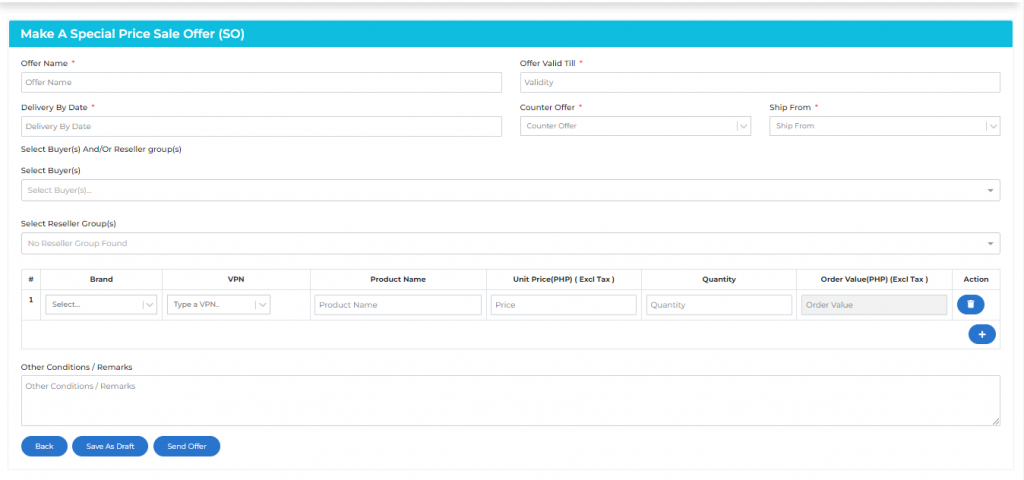
The ‘Offer valid till’ is the date after which the offer expires.
The ‘Delivery by Date’ will be the date when the product will be delivered to the reseller.
The Counter Offer Option is a feature which you can set as ‘Yes’ to allow a buyer to send a counter offer as per their requirement.
‘Ship From’ is the location from which the product will be shipped.
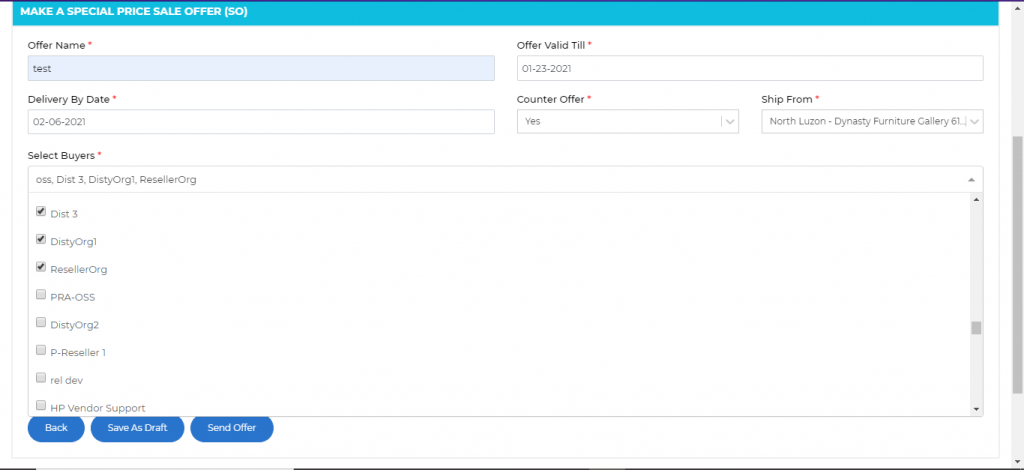
In the ‘Select Buyers’ section, you can select the resellers whom you wish to intimate about this sale offer.
Note: For each reseller that you add to the offer, a separate offer will be created.
As per below snap-shot choose the resellers to add to the offer using the checkbox provided against each buyer.
Next add the required Brand & VPNs by searching for them as shown below-
Set the required ‘Unit Price’ and ‘Quantity’ for each VPN as shown below-
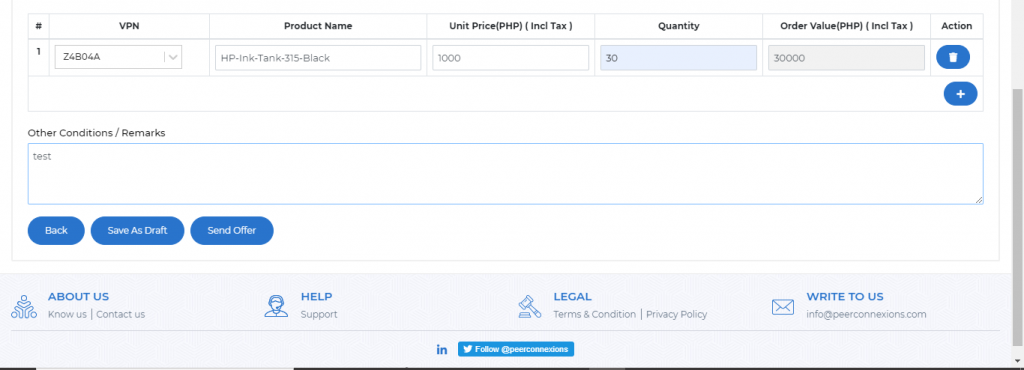
Note:The Order Value should be minimum 200,000 PHP to create a Special Price Sale Offer.
‘Send Offer’ will save the offer to the portal and also send a notification to the selected buyers. Note that the number of offers created will be equal to the number of buyers added while creating the offer as shown below-
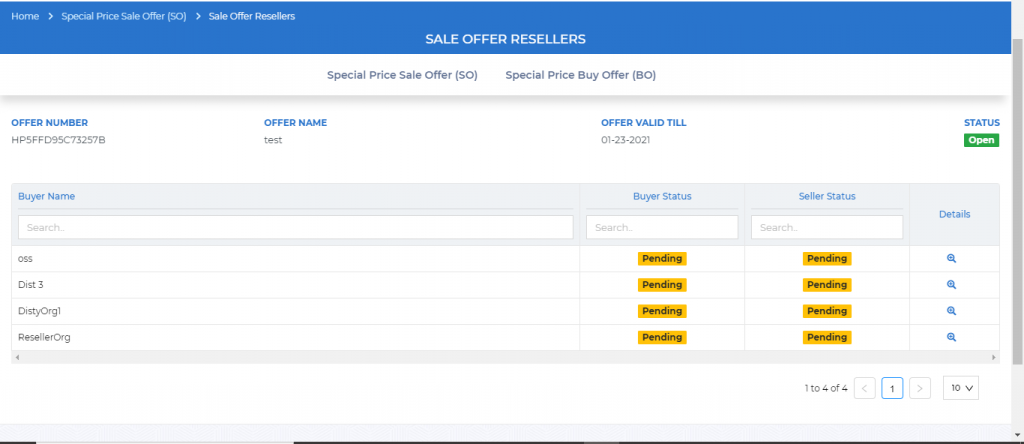
Now you have to wait for the buyer to take an action on these offers in order to proceed.
If the buyer has made a counter offer, you will see the Buyer Status as below-
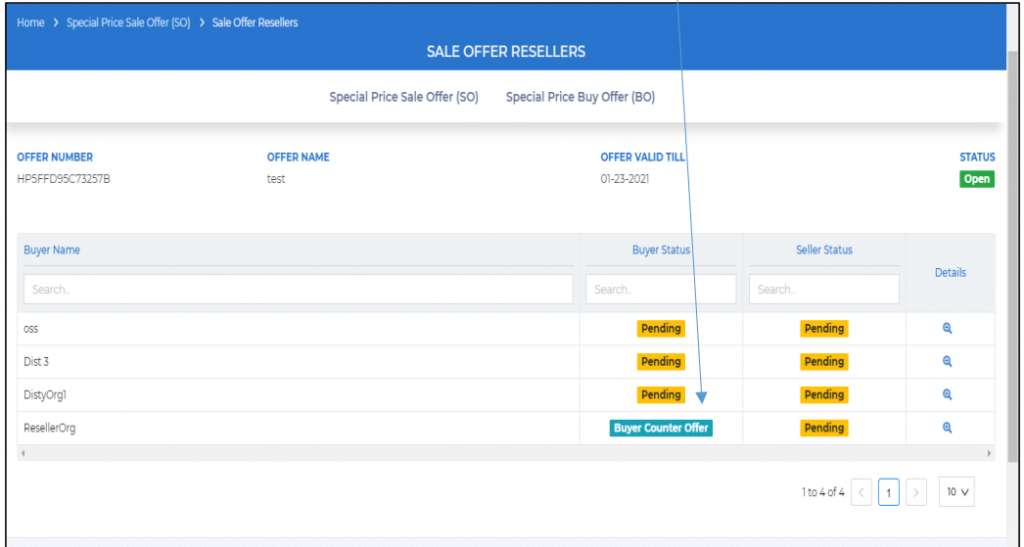
The magnifying glass icon under the ‘Details’ column will show the counter offer details sent by the buyer as seen in the below screen-shot
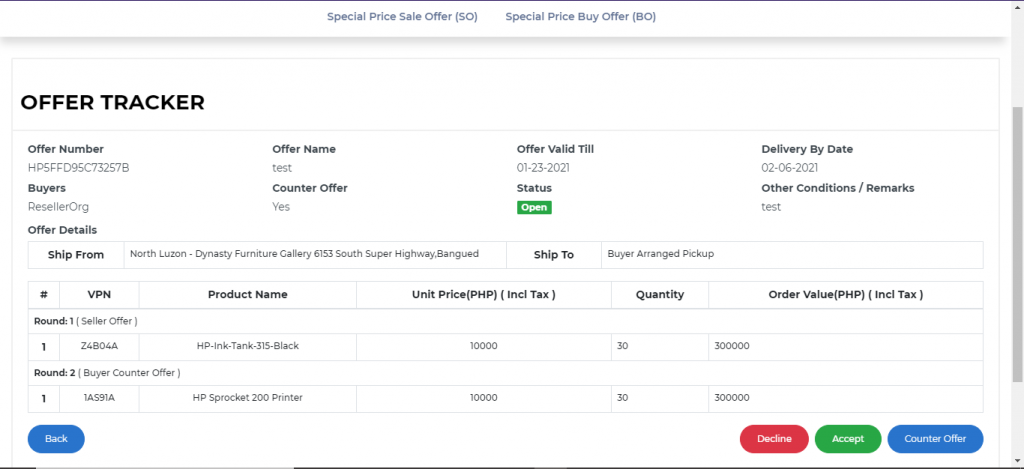
Here you can either ‘Accept’ the offer or ‘Decline’ it or create a ‘Counter offer’. Counter offer can be created as shown below-
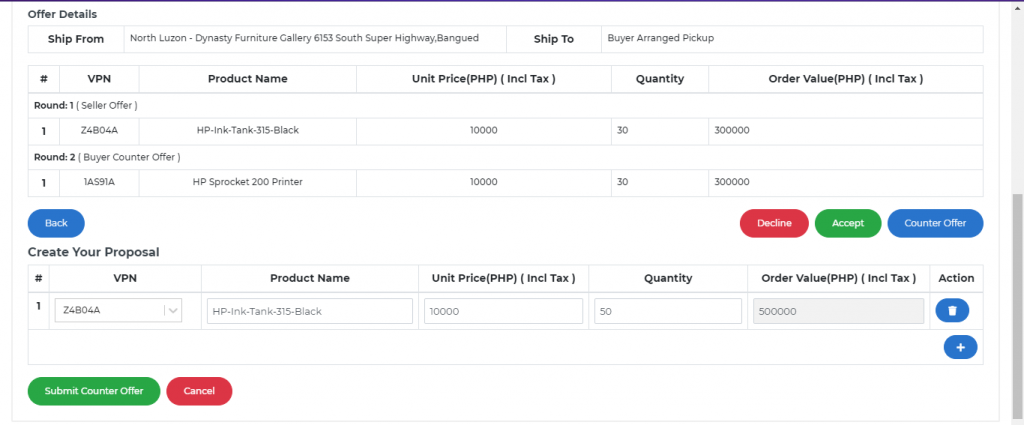
In the counter offer you can either remove the VPN as suggested by the buyer or change its unit price and/or quantity. You can also add additional VPNs using the ‘+’ sign and fill in the required details. Once you submit the counter offer, the offer status will change as shown below-
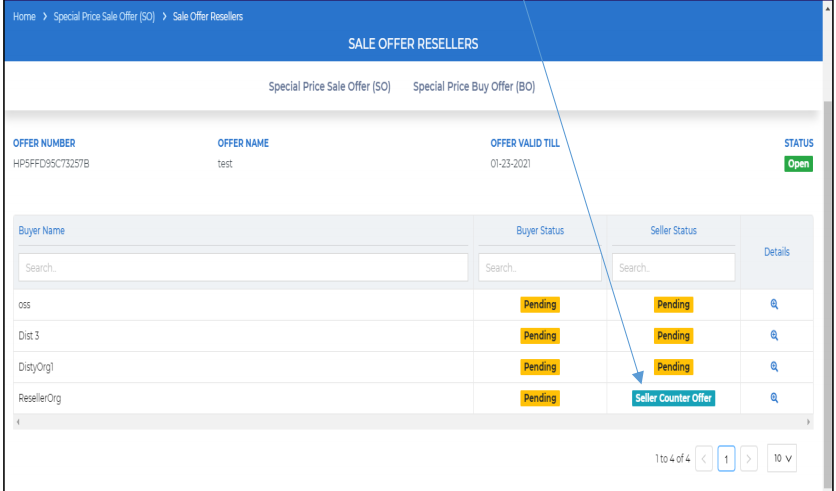
Now the reseller has to either ‘Accept’ the offer or ‘Decline’ it as this is the last round of negotiations and the status shown above would change accordingly.
Reseller Groups-
We have added a new feature of creating Reseller Groups within the special price sale offer, so that you can add the required resellers to a specific group and directly create the sale offer for all resellers in that group by selecting it.
A new reseller group can be created by going to Seller’s Zone>Special Price Sale Offers>Reseller group list(A) as shown below-
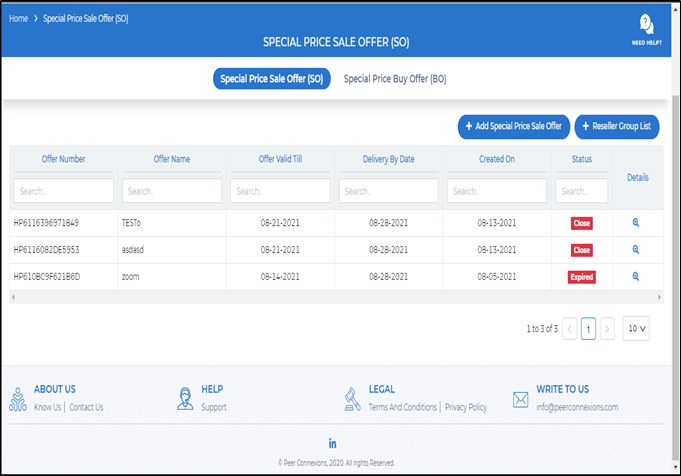
This will open a new page to create reseller groups as shown below–
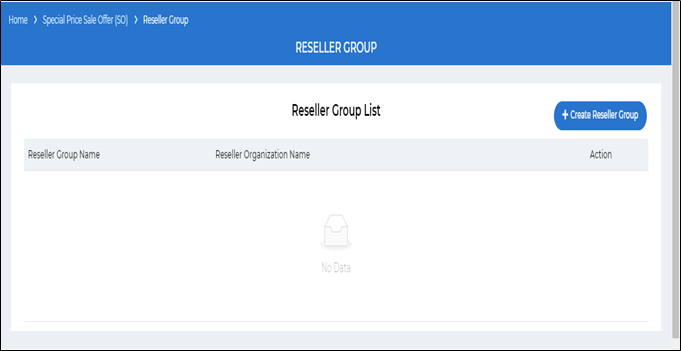
You can click on Create reseller group which will direct you to the below window–
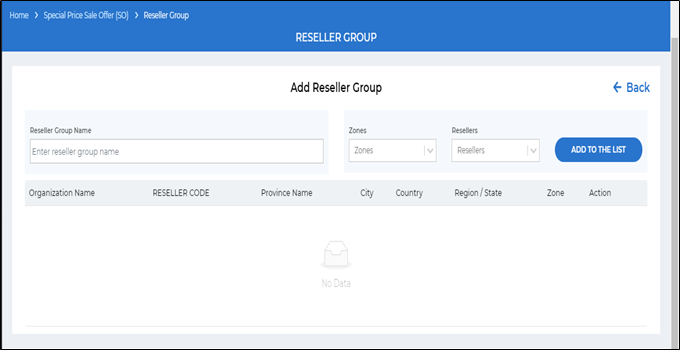
You can enter the required group name, select the zone from which you need to add the resellers and then select the reseller and add it to the list as shown below—
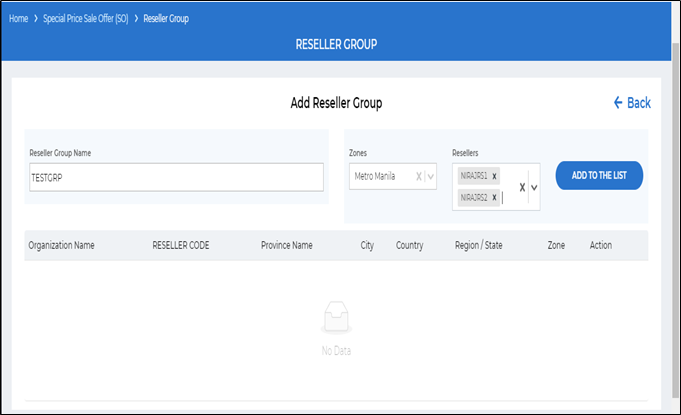
Once you add a reseller to the list, it will be shown as below-
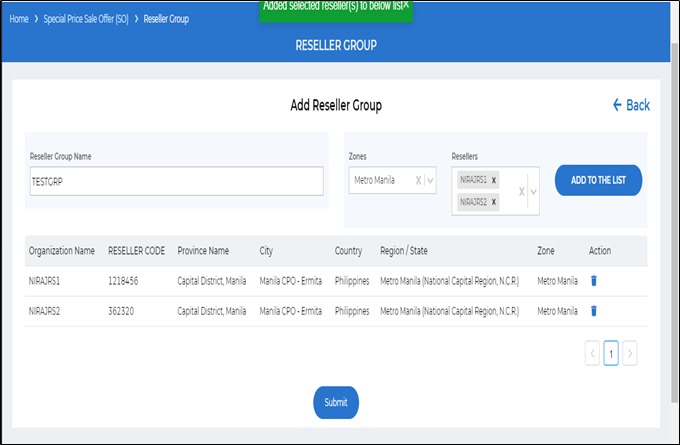
You can delete any reseller if required, from the list by clicking on the delete button(A) under the action column, or else, you can directly click on the submit button(B) to create the reseller group.
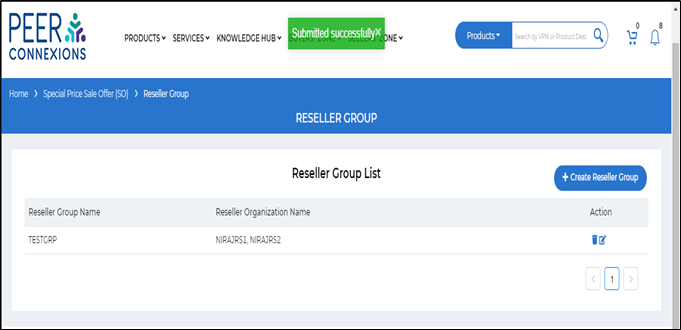
Once you submit, a reseller group will be created which can be seen as below–
Now you can go to the special price offer section, create a new offer and you will see that you can now directly add this reseller group for that offer as shown below-
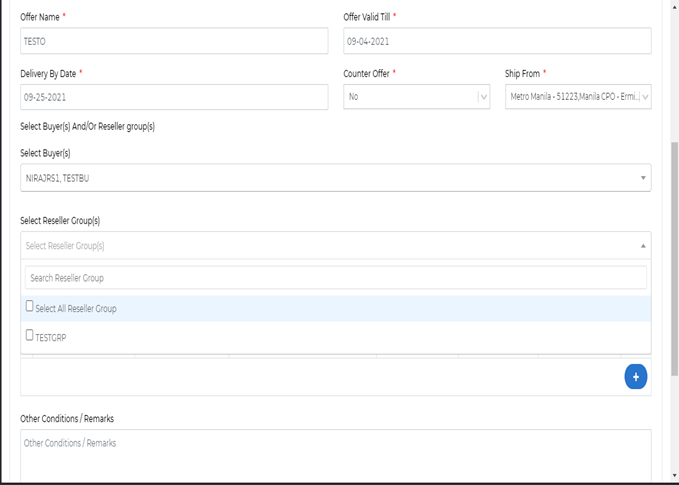
Do note that individual resellers as well as reseller groups can be selected while creating the special price sale offer as shown above.
Note: If you are an Overseas Seller, you can create a sale offer, which will follow the Import order flow after it is converted to an Order.
This should help you use the Special Price Sale Offer Module with ease.
————————————————-End of Document————————————————-